AWS Storage Services Cheat Sheet

AWS Storage Services Cheat Sheet

  • AWS provides storage services across four categories: Object (S3), Block (EBS), File (EFS, FSx), and Hybrid/Edge (Storage Gateway, Snow Family).
  • Each is optimized for different access patterns, latency requirements, and cost profiles.

Object Storage

Amazon S3

  • Unlimited object storage with 99.999999999% (11 nines) durability.
  • Max object size: 5TB; multipart upload for objects >100MB.
  • Storage Classes:
    • S3 Standard – frequently accessed, low latency, high throughput.
    • S3 Intelligent-Tiering – automatic cost optimization with access pattern monitoring.
    • S3 Standard-IA – infrequent access, lower storage cost, retrieval fee.
    • S3 One Zone-IA – single AZ, 20% cheaper than Standard-IA.
    • S3 Glacier Instant Retrieval – archive with millisecond access.
    • S3 Glacier Flexible Retrieval – archive, 1-12 hour retrieval.
    • S3 Glacier Deep Archive – lowest cost, 12-48 hour retrieval.
    • S3 Express One Zone – single-digit millisecond, single AZ, for analytics.
  • Lifecycle Policies – automatically transition objects between classes or expire them.
  • Versioning – keep multiple versions; protect against accidental deletes.
  • Replication – Cross-Region (CRR) or Same-Region (SRR) replication.
  • Object Lock – WORM (Write Once Read Many) for compliance (Governance or Compliance mode).
  • S3 Event Notifications – trigger Lambda, SQS, SNS, EventBridge on object events.
  • S3 Transfer Acceleration – faster uploads using CloudFront edge locations.
  • S3 Select / Glacier Select – retrieve subset of data using SQL.
  • Encryption: SSE-S3 (default), SSE-KMS, SSE-C, client-side.
  • Access Control: Bucket policies, IAM policies, ACLs (legacy), Access Points, Block Public Access.

Block Storage

Amazon EBS

  • Persistent block storage for EC2 instances.
  • Volume Types:
    • gp3 – general purpose SSD, 3,000 IOPS baseline, up to 16,000 IOPS. Cost-effective default.
    • gp2 – general purpose SSD, burst up to 3,000 IOPS (legacy, prefer gp3).
    • io2 Block Express – highest performance SSD, up to 256,000 IOPS, sub-ms latency. For databases.
    • io1 – provisioned IOPS SSD, up to 64,000 IOPS.
    • st1 – throughput-optimized HDD, up to 500 MB/s. For big data, data warehouses.
    • sc1 – cold HDD, lowest cost, up to 250 MB/s. For infrequent access.
  • Single AZ – must be in same AZ as EC2 instance.
  • Snapshots – point-in-time backups to S3 (incremental); can copy cross-region.
  • Multi-Attach – io2 volumes can attach to up to 16 Nitro instances in same AZ.
  • Encryption – AES-256 via KMS; encrypt at rest, in transit, and snapshots.
  • Elastic Volumes – resize, change type, or adjust IOPS without downtime.

EC2 Instance Store

  • Ephemeral block storage physically attached to host – highest IOPS/throughput.
  • Data lost on instance stop/terminate/failure.
  • Use for: temporary buffers, caches, scratch data.

File Storage

Amazon EFS

  • Managed NFS (NFSv4.1) – concurrent access from multiple EC2, ECS, Lambda.
  • Elastic – grows/shrinks automatically; pay only for what you use.
  • Performance modes: General Purpose (latency-sensitive) and Max I/O (high parallelism).
  • Throughput modes: Elastic (auto), Bursting, Provisioned.
  • Storage classes: Standard, Infrequent Access (IA), Archive – with lifecycle management.
  • Regional – data stored across multiple AZs; One Zone option available at lower cost.
  • Supports cross-region replication for DR.

Amazon FSx

  • FSx for Windows File Server – managed Windows SMB with Active Directory, DFS, VSS.
  • FSx for Lustre – high-performance parallel file system (HPC, ML). Integrates with S3.
  • FSx for NetApp ONTAP – multi-protocol (NFS, SMB, iSCSI) with snapshots, clones, tiering.
  • FSx for OpenZFS – high-performance NFS with snapshots and data compression.

Hybrid & Edge Storage

AWS Storage Gateway

  • Hybrid cloud storage connecting on-premises to AWS.
  • S3 File Gateway – NFS/SMB access to S3 objects.
  • FSx File Gateway – local cache for FSx for Windows File Server.
  • Volume Gateway – iSCSI block storage backed by S3 (Cached or Stored mode).
  • Tape Gateway – virtual tape library (VTL) backed by S3/Glacier.

AWS Snow Family

  • Snowcone – 8-14TB, portable edge computing and data transfer.
  • Snowball Edge – 80-210TB, Storage Optimized or Compute Optimized.
  • Snowmobile – 100PB, exabyte-scale data migration (truck).
  • Use for: offline data migration, edge computing where connectivity is limited.

AWS DataSync

  • Automated data transfer – on-premises to AWS (S3, EFS, FSx) or between AWS services.
  • Up to 10x faster than open-source tools; built-in scheduling, integrity validation.

AWS Transfer Family

  • Managed SFTP, FTPS, FTP, and AS2 transfers directly to/from S3 or EFS.

AWS Certification Exam Practice Questions

  1. A company needs to store 500TB of data that is rarely accessed (once per quarter) but must be retrievable within milliseconds. Which storage class is most cost-effective?
    1. S3 Standard
    2. S3 Standard-IA
    3. S3 Glacier Instant Retrieval
    4. S3 Glacier Deep Archive
  2. A database requires 100,000 IOPS with sub-millisecond latency on a single EC2 instance. Which EBS volume type should be used?
    1. gp3
    2. io1
    3. io2 Block Express
    4. st1
  3. Multiple EC2 instances across AZs need shared access to a POSIX-compliant file system with automatic capacity scaling. Which service fits?
    1. EBS Multi-Attach
    2. S3
    3. EFS
    4. FSx for Lustre
  4. A company needs to migrate 50TB of on-premises data to S3, but their internet connection would take 2 weeks. Which service provides faster physical transfer?
    1. S3 Transfer Acceleration
    2. DataSync
    3. Snowball Edge
    4. Storage Gateway
  5. An on-premises application uses NFS to access files that must be stored in S3 for durability. Which service provides this transparent NFS-to-S3 bridge?
    1. EFS
    2. FSx for ONTAP
    3. S3 File Gateway
    4. DataSync

Related Posts

References

Amazon S3 User Guide

Amazon EBS User Guide

Amazon EFS User Guide

AWS Storage Gateway User Guide

AWS S3 vs EBS vs EFS vs FSx

AWS S3 vs EBS vs EFS vs FSx

  • AWS offers four primary storage services, each designed for different access patterns and use cases.
  • S3 is object storage, EBS is block storage for EC2, EFS is managed NFS file storage, and FSx is managed file systems for specific workloads (Windows, Lustre, NetApp, OpenZFS).
  • Choice depends on access patterns, performance needs, sharing requirements, and protocol compatibility.

S3 vs EBS vs EFS vs FSx Comparison

Feature S3 EBS EFS FSx
Type Object storage Block storage File storage (NFS) File storage (multiple protocols)
Access HTTP/HTTPS API Attached to single EC2 (multi-attach for io2) Concurrent access from multiple EC2/ECS/Lambda Concurrent access from multiple instances
Protocol REST API, S3 API Block device (no protocol) NFSv4.1 SMB, NFS, Lustre, iSCSI
Max Size Unlimited (5TB per object) 64TB per volume Unlimited (petabyte scale) Varies (up to petabytes)
Durability 99.999999999% (11 nines) 99.999% (within AZ) 99.999999999% (across AZs) 99.999999999% (Multi-AZ option)
Availability Zone Regional (across 3+ AZs) Single AZ Regional (Multi-AZ) Single AZ or Multi-AZ
Performance High throughput, higher latency Low latency (sub-ms for io2) Low latency, scales with file system Sub-ms latency (Lustre/OpenZFS)
Use Case Backup, data lake, static hosting, archive Databases, boot volumes, transactional workloads Shared content, CMS, home dirs, containers HPC, Windows shares, ML training, ONTAP
Pricing Model Per GB stored + requests + transfer Per GB provisioned + IOPS (io2) Per GB used (no provisioning) Per GB provisioned + throughput
Lifecycle/Tiering Yes (Intelligent-Tiering, Glacier) No Yes (EFS IA, Archive) Limited (FSx Lustre S3 integration)
Encryption SSE-S3, SSE-KMS, SSE-C AES-256 (KMS) AES-256 (KMS) AES-256 (KMS)
Backup Versioning, Cross-Region Replication Snapshots (to S3) AWS Backup AWS Backup, automatic backups

Amazon S3

  • Object storage – stores data as objects (key-value) with unlimited capacity.
  • Best for data lakes, backups, static website hosting, media storage, and archive.
  • Multiple storage classes: Standard, IA, One Zone-IA, Intelligent-Tiering, Glacier Instant/Flexible/Deep Archive.
  • Not a file system – cannot be mounted directly (use S3 Mountpoint for read-heavy workloads).
  • Supports event notifications to Lambda, SQS, SNS, EventBridge for event-driven processing.

Amazon EBS

  • Block-level storage designed for single EC2 instance attachment (io2 supports multi-attach).
  • Best for databases, boot volumes, and applications requiring low-latency block access.
  • Volume types: gp3 (general purpose), io2 Block Express (high IOPS), st1 (throughput), sc1 (cold).
  • Single AZ – volume and instance must be in the same AZ; use snapshots for cross-AZ/region copies.
  • Supports live volume resizing and type changes without downtime.

Amazon EFS

  • Fully managed NFS file system – multiple EC2, ECS, and Lambda can access simultaneously.
  • Best for shared content repositories, CMS, home directories, container storage, and ML training data.
  • Elastic – automatically grows and shrinks; pay only for storage used.
  • Performance modes: General Purpose (latency-sensitive) and Max I/O (high throughput).
  • EFS Infrequent Access and Archive tiers reduce costs for rarely accessed files.
  • Supports cross-region replication for DR.

Amazon FSx

  • Managed file systems for specialized workloads – four options available.
  • FSx for Windows File Server – fully managed Windows-native (SMB) with Active Directory integration.
  • FSx for Lustre – high-performance parallel file system for HPC, ML training; integrates with S3.
  • FSx for NetApp ONTAP – multi-protocol (NFS, SMB, iSCSI) with NetApp features (SnapMirror, FlexClone).
  • FSx for OpenZFS – high-performance NFS with snapshots, cloning, and data compression.

When to Choose Which

  • Choose S3 – Unstructured data, backups, data lake, web assets, archive, serverless data processing.
  • Choose EBS – Database storage, single-instance applications requiring low-latency block I/O.
  • Choose EFS – Shared Linux file system, containers needing shared storage, Lambda file access.
  • Choose FSx for Windows – Windows applications, SMB shares, Active Directory integration.
  • Choose FSx for Lustre – HPC, ML training, video processing needing sub-ms latency with S3 integration.
  • Choose FSx for ONTAP – Multi-protocol access, hybrid cloud, applications needing NetApp features.

AWS Certification Exam Practice Questions

  1. A web application running on multiple EC2 instances across AZs needs shared access to uploaded user files. Which storage service is most appropriate?
    1. S3 with Mountpoint
    2. EBS Multi-Attach
    3. EFS
    4. FSx for OpenZFS
  2. A database workload requires consistent sub-millisecond latency with 64,000 IOPS on a single EC2 instance. Which storage should be used?
    1. EFS Max I/O mode
    2. S3 Express One Zone
    3. EBS io2 Block Express
    4. FSx for Lustre
  3. A company needs to migrate Windows file shares with Active Directory permissions to AWS. Which service maintains full compatibility?
    1. EFS
    2. S3
    3. FSx for OpenZFS
    4. FSx for Windows File Server
  4. An ML training job needs to process a 50TB dataset stored in S3 with the highest possible throughput. Which storage approach minimizes training time?
    1. Copy data to EBS gp3
    2. Access directly from S3
    3. FSx for Lustre linked to S3 bucket
    4. Copy to EFS

Related Posts

References

Amazon S3 User Guide

Amazon EBS User Guide

Amazon EFS User Guide

Amazon FSx for Windows File Server User Guide

EC2 Dedicated Hosts vs Dedicated Instances

EC2 Dedicated Host vs Dedicated Instances

EC2 Dedicated Host vs Dedicated Instances

  • Each instance launched into a VPC has a tenancy attribute.
    • default
      • is the default option
      • instances run on shared hardware.
      • all instances launched would be shared, unless you explicitly specify a different tenancy during the instance launch.
    • dedicated
      • instance runs on single-tenant hardware.
      • all instances launched would be dedicated
      • can’t be changed to default after creation
    • host
      • instance runs on a Dedicated Host, which is an isolated server with configurations that you can control.
  • Tenancy conversion rules (instance must be in stopped state):
    • default tenancy can be changed to dedicated or host.
    • dedicated tenancy can be changed to default or host.
    • host tenancy can be changed to dedicated or default (except for T3 instances, which cannot change from host to dedicated or default).
    • Changes take effect the next time the instance starts.
    • Tenancy conversions are managed through AWS License Manager tenancy conversion with billing code restrictions (e.g., Windows BYOL not permitted on shared tenancy, license-included SQL Server/SUSE not permitted on Dedicated Hosts).
  • VPC tenancy of dedicated can’t be changed to default after creation.
  • Dedicated Hosts and Dedicated Instances can both be used to launch EC2 instances onto physical servers that are dedicated for your use.
  • There are no performance, security, or physical differences between Dedicated Instances and instances on Dedicated Hosts.

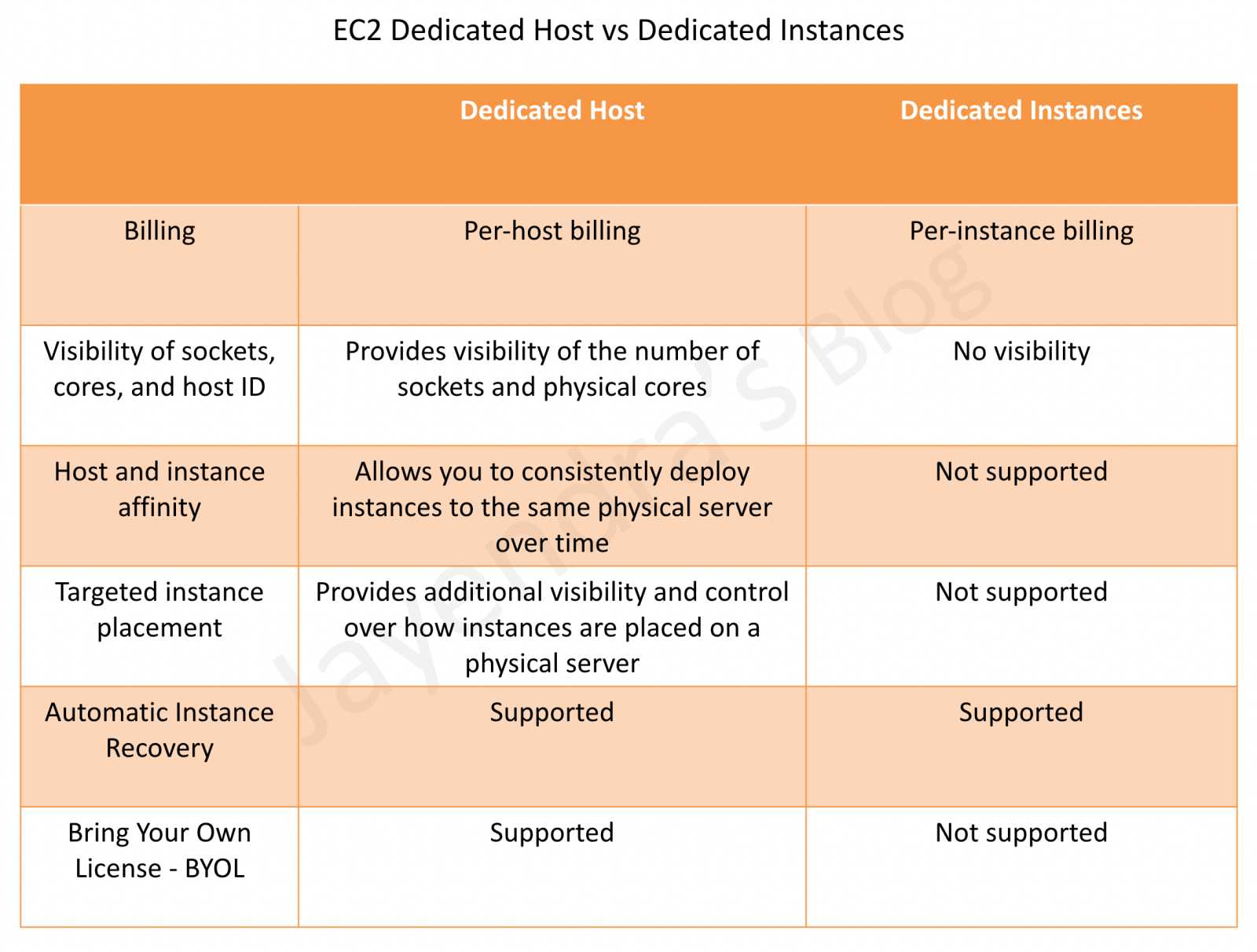
Dedicated Host vs Dedicated Instances

EC2 Dedicated Host vs Dedicated Instances

Feature Dedicated Host Dedicated Instance
Dedicated physical server Physical server with instance capacity fully dedicated to your use Physical server dedicated to a single customer account
Instance capacity sharing Can share capacity with other accounts via AWS RAM Not supported
Billing Per-host billing Per-instance billing
Visibility of sockets, cores, and host ID Provides visibility of the number of sockets and physical cores No visibility
Host and instance affinity Allows consistent deployment to the same physical server Not supported
Targeted instance placement Provides control over how instances are placed on a physical server Not supported
Automatic instance recovery Supported Supported
Bring Your Own License (BYOL) Comprehensive support Partial support (SQL Server with License Mobility, Windows VDA only)
Capacity Reservations Not supported Supported

Dedicated Hosts

  • EC2 Dedicated Host is a physical server with EC2 instance capacity fully dedicated to your use.
  • provides Affinity that allows you to specify which Dedicated Host an instance will run on after it has been stopped and restarted.
  • Dedicated Hosts provide visibility and the option to control how you place your instances on a specific, physical server. This enables you to deploy instances using configurations that help address corporate compliance and regulatory requirements.
  • Dedicated Hosts allow using existing per-socket, per-core, or per-VM software licenses, including Windows Server, Microsoft SQL Server, SUSE Linux Enterprise Server, Red Hat Enterprise Linux, or other software licenses that are bound to VMs, sockets, or physical cores.
  • Dedicated Host is also integrated with AWS License Manager, a service that helps you manage your software licenses, including Microsoft Windows Server and Microsoft SQL Server licenses.
  • Dedicated Hosts support Host Resource Groups through AWS License Manager, allowing you to manage a collection of Dedicated Hosts as a single entity with automated host allocation and license tracking.
  • Dedicated Hosts can be shared across AWS accounts using AWS Resource Access Manager (RAM), allowing other accounts to launch instances on your Dedicated Hosts.
  • Dedicated Hosts support both single instance type and multiple instance type configurations within the same instance family.
  • RDS instances are not supported.
  • Dedicated Hosts cannot be launched in placement groups.
  • SQL Server, SUSE, and RHEL AMIs provided by Amazon EC2 cannot be used with Dedicated Hosts (BYOL only for these).
  • AWS recommends migrating from Xen-based Dedicated Hosts to Nitro-based Dedicated Hosts for improved price performance.

Dedicated Host Maintenance

  • Live Migration-based Host Maintenance (October 2024) – AWS now supports live migration for Dedicated Hosts during maintenance events. When a host requires maintenance, AWS allocates a replacement Dedicated Host and moves instances to the new host automatically within 24 hours, without stopping and restarting them.
  • Host Recovery – Automatically detects hardware issues and migrates instances to a replacement host, minimizing disruption.
  • If host maintenance is disabled, you receive notification to manually migrate instances within 28 days. After 28 days, instances are terminated and the host is released.
  • EC2 Mac Dedicated Hosts (August 2025) – Now support Host Recovery and Reboot-based Host Maintenance for Mac instances.

Dedicated Host Auto-Placement

  • When auto-placement is enabled, instances launched with host tenancy (without a specific host ID) are automatically placed on any available Dedicated Host with matching instance type.
  • When auto-placement is disabled, you must provide a specific host ID for instance launch.
  • Auto-placement works with Host Resource Groups in License Manager for automated host management and allocation.

Dedicated Instances

  • Dedicated Instances are EC2 instances that run in a VPC on hardware that’s dedicated to a single customer.
  • Dedicated Instances are physically isolated at the host hardware level from the instances that aren’t Dedicated Instances and from instances that belong to other AWS accounts.
  • Dedicated Instances may share hardware with other instances from the same AWS account that are not Dedicated Instances.
  • Dedicated Instances provide no visibility or control over instance placement and do not support host affinity.
  • Dedicated Instances provide limited support for Bring Your Own License (BYOL).
  • Dedicated Instances can be launched using:
    • Create the VPC with the instance tenancy set to dedicated – all instances launched into this VPC are Dedicated Instances.
    • Create the VPC with the instance tenancy set to default, and specify dedicated tenancy for any instances that should be Dedicated Instances when launched.
  • Dedicated Instances support:
    • Reserved Instances and Capacity Reservations
    • Auto Scaling
    • Automatic instance recovery
    • Spot Instances (Dedicated Spot Instances)
    • Burstable performance instances (T3)
  • EBS volumes attached to Dedicated Instances do NOT run on single-tenant hardware.

AWS Certification Exam Practice Questions

  • Questions are collected from Internet and the answers are marked as per my knowledge and understanding (which might differ with yours).
  • AWS services are updated everyday and both the answers and questions might be outdated soon, so research accordingly.
  • AWS exam questions are not updated to keep up the pace with AWS updates, so even if the underlying feature has changed the question might not be updated
  • Open to further feedback, discussion and correction.
  1. A company wants its instances to run on single-tenant hardware with dedicated hardware for compliance reasons. Which value should they have to set the instance’s tenancy attribute to?
    1. Dedicated
    2. Isolated
    3. Default
    4. Reserved
  2. A company is performing migration from on-premises to AWS cloud. They have a compliance requirement for application hosting on physical servers to be able to use existing server-bound software licenses. Which AWS EC2 purchase type would help fulfill the requirement?
    1. Spot instances
    2. Reserved instances
    3. On-demand instances
    4. Dedicated Hosts
  3. A company runs licensed software that requires visibility into the physical cores and sockets of the underlying server. Which EC2 tenancy option provides this visibility?
    1. Default tenancy
    2. Dedicated Instances
    3. Dedicated Hosts
    4. Placement Groups
  4. A company uses EC2 Dedicated Hosts and wants to minimize downtime during host maintenance events. Which feature should they enable? (Select TWO)
    1. Live migration-based host maintenance
    2. Enhanced networking
    3. Host Recovery
    4. Elastic Fabric Adapter
    5. Placement Groups
  5. A company wants to share Dedicated Host capacity with other AWS accounts in their organization. Which AWS service enables this?
    1. AWS Organizations
    2. AWS Resource Access Manager (RAM)
    3. AWS License Manager
    4. AWS Service Catalog
  6. Which of the following statements about Dedicated Instances is CORRECT? (Select TWO)
    1. EBS volumes attached to Dedicated Instances do NOT run on single-tenant hardware
    2. Dedicated Instances provide visibility into the number of physical cores
    3. Dedicated Instances may share hardware with other non-dedicated instances from the same account
    4. Dedicated Instances support host affinity
    5. Dedicated Instances cannot use Spot pricing

References

AWS EC2 Troubleshooting

AWS EC2 Troubleshooting

An Instance Immediately Terminates

  • EBS volume limit was reached. EBS volume limits are soft limits and can be increased by submitting a Service Quotas request.
  • EBS snapshot is corrupt.
  • Root EBS volume is encrypted and you do not have permission to access the KMS key for decryption.
  • A snapshot specified in the block device mapping for the AMI is encrypted and you do not have permissions to access the KMS key for decryption.
  • Instance store-backed AMI used to launch the instance is missing a required part (e.g., image.part.xx file).
  • Resolution
    • Check the State transition reason in the EC2 console (Instance description tab) to identify the exact cause.
    • Delete unused volumes if volume limit is reached.
    • Ensure proper permissions to access the AWS KMS keys for decryption.
    • Verify block device mapping snapshots are accessible.

EC2 Instance Connectivity Issues

  • Error connecting to your instance: Connection timed out
    • Route table for the subnet does not have a route that sends all traffic destined outside the VPC to the Internet gateway for the VPC.
    • Security group does not allow inbound traffic from the public IP address on the proper port.
    • Network ACL does not allow inbound traffic from and outbound traffic to the public IP address on the proper port.
    • Private key used to connect does not match with the key pair selected for the instance during launch.
    • Appropriate user name for the AMI is not used for e.g. user name for Amazon Linux 2/Amazon Linux 2023 AMI is ec2-user, Ubuntu AMI is ubuntu, RHEL AMI is ec2-user, SUSE Linux is ec2-user, Fedora AMI is fedora or ec2-user, Debian AMI is admin.
    • If connecting from a corporate network, the internal firewall does not allow inbound and outbound traffic on port 22 (for Linux instances) or port 3389 (for Windows instances).
    • Instance does not have the same public IP address, which changes during restarts. Associate an Elastic IP address with the instance.
    • CPU load on the instance is high; the server may be overloaded.
    • Instance is in a private subnet without a public IP. Use EC2 Instance Connect Endpoint or Systems Manager Session Manager for connectivity.
  • User key not recognized by the server
    • Private key file used to connect has not been converted to the format required by the server (e.g., PuTTY requires .ppk format).
  • Host key not found, Permission denied (publickey), or Authentication failed, permission denied
    • Appropriate user name for the AMI is not used for connecting.
    • Proper private key file (.pem or .ppk) for the instance is not used.
  • Unprotected Private Key File
    • Private key file is not protected from read and write operations from any other users.
    • Resolution: Set file permissions to 400 using chmod 400 key.pem.
  • Server refused our key or No supported authentication methods available
    • Appropriate user name for the AMI is not used for connecting.
    • Instance does not have the correct public key in ~/.ssh/authorized_keys.

Modern Connectivity Alternatives

  • EC2 Instance Connect Endpoint (EIC Endpoint)
    • Launched in June 2023, allows SSH and RDP connectivity without public IP addresses.
    • No need for an Internet Gateway, bastion host, or agent on the instance.
    • Creates a private tunnel from your client to the instance through the AWS network.
    • Supports both SSH (port 22) and RDP (port 3389) connections.
    • Security group on the instance must allow inbound traffic from the EIC Endpoint.
    • IAM policies control who can use the endpoint to connect to specific instances.
  • EC2 Instance Connect (Browser-based)
    • Provides browser-based SSH connection from the AWS Console.
    • Uses temporary (60-second) SSH keys — no need to manage long-term SSH keys.
    • Supports RSA and ED25519 key pairs.
    • Requires the EC2 Instance Connect package installed on the instance (pre-installed on Amazon Linux 2, Amazon Linux 2023, Ubuntu 20.04+).
  • AWS Systems Manager Session Manager
    • Provides shell access without opening inbound ports (no port 22 needed).
    • No SSH keys required — uses IAM for authentication and authorization.
    • Full audit trail logged in CloudTrail with optional session logging to S3/CloudWatch.
    • Works with instances in private subnets (requires SSM Agent and appropriate IAM role).
    • Supports port forwarding for accessing applications on the instance.
    • Available at no additional charge for EC2 instances.

Failed Status Checks

  • System Status CheckChecks Physical Host
    • Lost network connectivity
    • Loss of system power
    • Software issues on the physical host
    • Hardware issues on the physical host that affect network reachability
    • Resolution
      • Amazon EBS-backed AMI instance — stop and start the instance (migrates to a new host).
      • Instance-store backed AMI — terminate the instance and launch a replacement.
      • Simplified Automatic Recovery — enabled by default on supported instance types; automatically moves the instance to a new host when system status check fails.
  • Instance Status CheckChecks Instance/VM
    • Possible reasons
      • Misconfigured networking or startup configuration
      • Exhausted memory
      • Corrupted file system
      • Failed Amazon EBS volume or physical drive
      • Incompatible kernel
    • Resolution
      • Reboot the instance or make modifications in the operating system or volumes.
      • Use EC2 Serial Console to troubleshoot boot and network configuration issues interactively.
      • Use AWSSupport-TroubleshootSSH automation runbook to automatically diagnose and fix SSH issues.
  • Attached EBS Status CheckChecks EBS Volume Reachability (added 2024)
    • Monitors whether EBS volumes attached to an instance are reachable and can complete I/O operations.
    • Available for all Nitro-based instances.
    • CloudWatch metric: StatusCheckFailed_AttachedEBS
    • Possible reasons
      • EBS volume hardware failure
      • Connectivity issue between the instance and EBS volume
      • EBS infrastructure issues
    • Resolution
      • Check EBS volume status in the console.
      • Detach and reattach the volume, or create a new volume from the latest snapshot.
      • Stop and start the instance to migrate to a new host.

EC2 Serial Console

  • Provides a text-based serial connection to troubleshoot boot and network issues.
  • Works even when the OS is not fully booted, network is down, or SSH is broken.
  • Supported on Nitro-based instances.
  • Must be enabled at the account level before use.
  • Requires a password-based OS user (SSH keys don’t work for serial console).
  • Use Cases:
    • Troubleshoot boot failures (GRUB menu access, kernel issues).
    • Diagnose network misconfigurations that block SSH.
    • Fix firewall rules (iptables/nftables) that locked out SSH.
    • Recover from file system errors.
    • Debug SELinux/AppArmor issues preventing boot.

EC2Rescue and Automated Troubleshooting

  • AWSSupport-TroubleshootSSH Automation Runbook
    • Installs EC2Rescue tool and automatically checks/fixes common SSH issues.
    • Checks SSH daemon configuration, file permissions, and network settings.
    • Can run in read-only mode (inspect) or fix mode (FixAll).
    • Runs via AWS Systems Manager Automation.
  • EC2Rescue for Linux
    • Diagnoses and remediates OS-level issues on EC2 Linux instances.
    • Can be run on an offline instance by attaching its root volume to a rescue instance.
    • Checks: SSH configuration, file system consistency, network settings, kernel issues.
  • AWSSupport-ExecuteEC2Rescue
    • Automation document that creates a rescue instance, moves the root volume, runs EC2Rescue, and reattaches the volume.
    • Useful when instance is completely unreachable.

Instance Capacity Issues

  • InsufficientInstanceCapacity
    • AWS does not currently have enough available capacity to service the request.
    • Issue is mainly from the AWS side and it can be resolved by:
      • Waiting a few minutes and resubmitting the request.
      • Reducing the request for the number of instances.
      • Changing the instance type.
      • Submitting a request without specifying the Availability Zone.
      • Using On-Demand Capacity Reservations to reserve capacity in advance.
      • Using EC2 Capacity Blocks for ML to reserve GPU instances for ML workloads.
  • InstanceLimitExceeded
    • EC2 On-Demand instance limits are now vCPU-based (not count-based). Each instance family has a separate vCPU quota per region.
    • Default vCPU limits vary by instance family (e.g., Running On-Demand Standard instances default: varies by account).
    • Spot Instance limits are also vCPU-based.
    • Resolution: Request a Service Quotas increase on a per-region, per-instance-family basis.

Key Pair and SSH Key Troubleshooting

  • Supported Key Types
    • RSA (2048-bit) — supported for all instance types, required for Windows instances.
    • ED25519 — supported for Linux instances only, provides better performance and security.
  • Common Key Issues
    • Using an ED25519 key with a Windows instance (not supported).
    • Key file permissions too open (must be 400 or 600 on Linux/macOS).
    • Key not converted to .ppk format for PuTTY on Windows.
    • Wrong key pair — instance was launched with a different key pair than the one being used to connect.
  • Recovery Options (if key is lost)
    • Use EC2 Instance Connect to push a temporary key and regain access.
    • Use Systems Manager Session Manager (no SSH key required).
    • Stop the instance, detach root volume, mount on another instance, add public key to authorized_keys, reattach.
    • Use EC2 Serial Console to log in with a password-based user and fix authorized_keys.

AWS Certification Exam Practice Questions

  • Questions are collected from Internet and the answers are marked as per my knowledge and understanding (which might differ with yours).
  • AWS services are updated everyday and both the answers and questions might be outdated soon, so research accordingly.
  • AWS exam questions are not updated to keep up the pace with AWS updates, so even if the underlying feature has changed the question might not be updated
  • Open to further feedback, discussion and correction.
  1. A user has launched an EC2 instance. The instance got terminated as soon as it was launched. Which of the below mentioned options is not a possible reason for this?
    1. The user account has reached the maximum EC2 instance limit (Refer link)
    2. The snapshot is corrupt
    3. The AMI is missing. It is the required part
    4. The user account has reached the maximum volume limit
  2. If you’re unable to connect via SSH to your EC2 instance, which of the following should you check and possibly correct to restore connectivity?
    1. Adjust Security Group to permit egress traffic over TCP port 443 from your IP.
    2. Configure the IAM role to permit changes to security group settings.
    3. Modify the instance security group to allow ingress of ICMP packets from your IP.
    4. Adjust the instance’s Security Group to permit ingress traffic over port 22 from your IP
    5. Apply the most recently released Operating System security patches.
  3. You try to connect via SSH to a newly created Amazon EC2 instance and get one of the following error messages: “Network error: Connection timed out” or “Error connecting to [instance], reason: -> Connection timed out: connect,” You have confirmed that the network and security group rules are configured correctly and the instance is passing status checks. What steps should you take to identify the source of the behavior? Choose 2 answers
    1. Verify that the private key file corresponds to the Amazon EC2 key pair assigned at launch.
    2. Verify that your IAM user policy has permission to launch Amazon EC2 instances. (there is no need for a IAM user and just need ssh keys)
    3. Verify that you are connecting with the appropriate user name for your AMI. (Although it gives different error seems the only other logical choice)
    4. Verify that the Amazon EC2 Instance was launched with the proper IAM role. (role assigned to EC2 is irrelevant for ssh and only controls what AWS resources EC2 can access)
    5. Verify that your federation trust to AWS has been established (federation is for authenticating the user)
  4. A user has launched an EBS backed EC2 instance in the us-east-1a region. The user stopped the instance and started it back after 20 days. AWS throws up an ‘Insufficient Instance Capacity’ error. What can be the possible reason for this?
    1. AWS does not have sufficient capacity in that availability zone
    2. AWS zone mapping is changed for that user account
    3. There is some issue with the host capacity on which the instance is launched
    4. The user account has reached the maximum EC2 instance limit
  5. A user is trying to connect to a running EC2 instance using SSH. However, the user gets an Unprotected Private Key File error. Which of the below mentioned options can be a possible reason for rejection?
    1. The private key file has the wrong file permission
    2. The ppk file used for SSH is read only
    3. The public key file has the wrong permission
    4. The user has provided the wrong user name for the OS login
  6. A user has launched an EC2 instance. However, due to some reason the instance was terminated. If the user wants to find out the reason for termination, where can he find the details?
    1. It is not possible to find the details after the instance is terminated
    2. The user can get information from the AWS console, by checking the Instance description under the State transition reason label
    3. The user can get information from the AWS console, by checking the Instance description under the Instance Status Change reason label
    4. The user can get information from the AWS console, by checking the Instance description under the Instance Termination reason label
  7. You have a Linux EC2 web server instance running inside a VPC. The instance is in a public subnet and has an EIP associated with it so you can connect to it over the Internet via HTTP or SSH. The instance was also fully accessible when you last logged in via SSH and was also serving web requests on port 80. Now you are not able to SSH into the host nor does it respond to web requests on port 80, that were working fine last time you checked. You have double-checked that all networking configuration parameters (security groups route tables, IGW, EIP. NACLs etc.) are properly configured and you haven’t made any changes to those anyway since you were last able to reach the Instance). You look at the EC2 console and notice that system status check shows “impaired.” Which should be your next step in troubleshooting and attempting to get the instance back to a healthy state so that you can log in again?
    1. Stop and start the instance so that it will be able to be redeployed on a healthy host system that most likely will fix the “impaired” system status (for system status check impaired status you need Stop Start for EBS and terminate and relaunch for Instance store. Note: Simplified Automatic Recovery may also handle this automatically on supported instance types.)
    2. Reboot your instance so that the operating system will have a chance to boot in a clean healthy state that most likely will fix the ‘impaired” system status
    3. Add another dynamic private IP address to the instance and try to connect via that new path, since the networking stack of the OS may be locked up causing the “impaired” system status.
    4. Add another Elastic Network Interface to the instance and try to connect via that new path since the networking stack of the OS may be locked up causing the “impaired” system status
    5. Un-map and then re-map the EIP to the instance, since the IGW/NAT gateway may not be working properly, causing the “impaired” system status
  8. A user is trying to connect to a running EC2 instance using SSH. However, the user gets a connection time out error. Which of the below mentioned options is not a possible reason for rejection?
    1. The access key to connect to the instance is wrong (access key is different from ssh private key)
    2. The security group is not configured properly
    3. The private key used to launch the instance is not correct
    4. The instance CPU is heavily loaded
  9. A user is trying to connect to a running EC2 instance using SSH. However, the user gets a Host key not found error. Which of the below mentioned options is a possible reason for rejection?
    1. The user has provided the wrong user name for the OS login
    2. The instance CPU is heavily loaded
    3. The security group is not configured properly
    4. The access key to connect to the instance is wrong (access key is different from ssh private key)
  10. An administrator cannot connect to an EC2 instance via SSH after it was rebooted. The instance is passing both status checks. The security group allows port 22 from the admin’s IP. What should the administrator try FIRST?
    1. Terminate and relaunch the instance
    2. Use EC2 Serial Console to check if the SSH daemon is running and review boot logs
    3. Create a new security group and attach it
    4. Contact AWS Support to restart the underlying host
  11. A company wants to provide shell access to EC2 instances in private subnets without opening port 22 or managing SSH keys. Which solution meets these requirements?
    1. Deploy a bastion host in a public subnet with a public IP
    2. Use EC2 Instance Connect with a public IP assigned to each instance
    3. Use AWS Systems Manager Session Manager with appropriate IAM roles
    4. Set up a VPN connection from the corporate network
  12. An EC2 instance is experiencing I/O errors. The system status check and instance status check both pass, but the attached EBS status check shows “impaired.” What is the most likely cause?
    1. The instance’s operating system has a corrupted file system
    2. The underlying physical host has a hardware failure
    3. The EBS volume attached to the instance is unreachable or unable to complete I/O operations
    4. The instance has exhausted its network bandwidth

EC2 Placement Groups – Cluster, Spread & Partition

EC2 Placement Groups

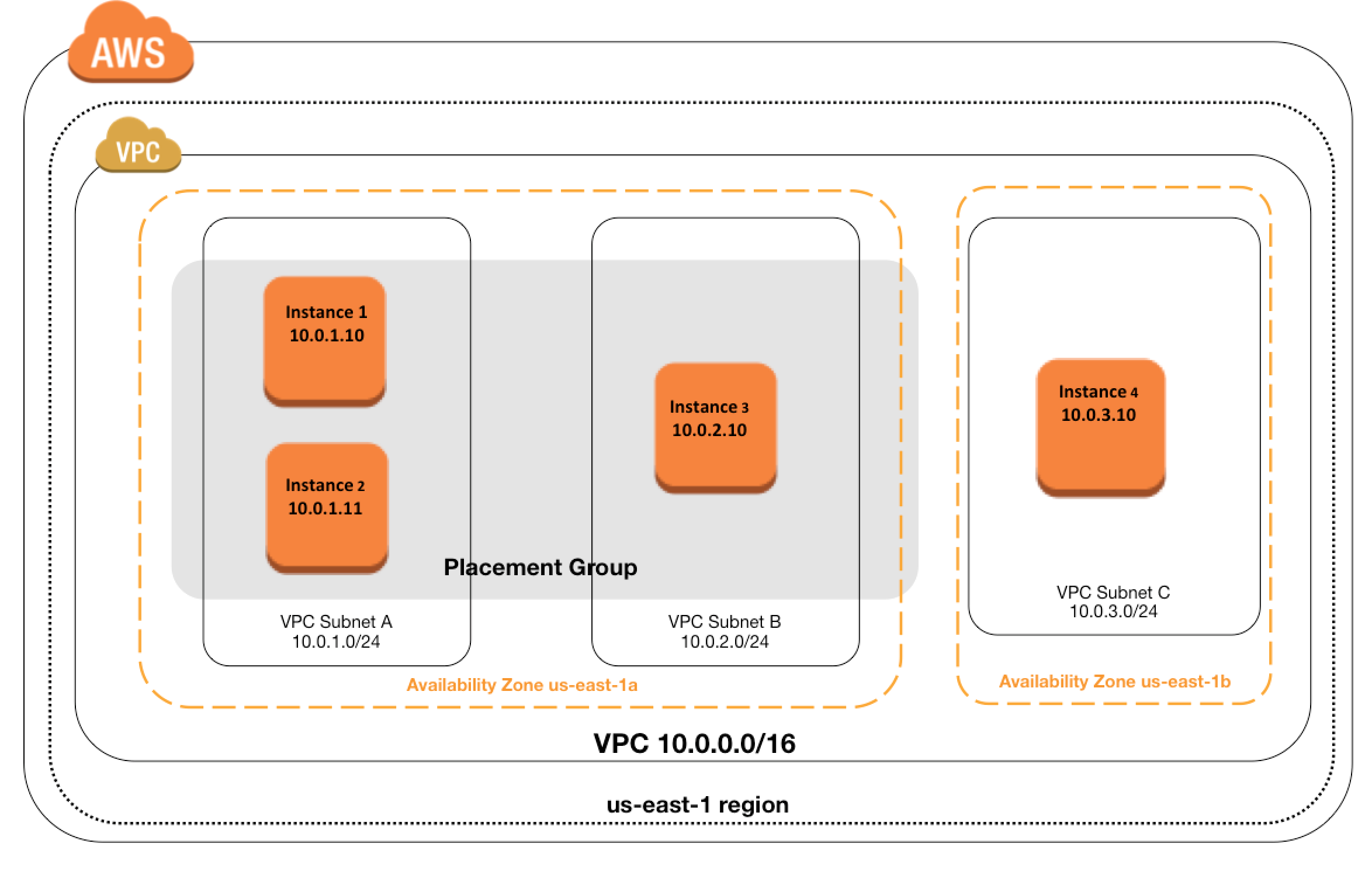
  • EC2 Placement groups determine how the instances are placed on the underlying hardware.
  • AWS provides three types of placement groups
    • Cluster – clusters instances into a low-latency group in a single AZ
    • Partition – spreads instances across logical partitions, ensuring that instances in one partition do not share underlying hardware with instances in other partitions
    • Spread – strictly places a small group of instances across distinct underlying hardware to reduce correlated failures
  • There is no charge for creating a placement group.
  • A maximum of 500 placement groups can be created per account in each Region.
  • Placement groups support tagging at creation time.
  • Placement groups can be shared across multiple AWS accounts using AWS Resource Access Manager (RAM).

Cluster Placement Groups

  • is a logical grouping of instances within a single Availability Zone
  • don’t span across Availability Zones
  • can span peered VPCs in the same Region
  • Instances are not isolated to a single rack.
  • impacts High Availability as susceptible to hardware failures for the application
  • recommended for
    • applications that benefit from low network latency, high network throughput, or both.
    • when the majority of the network traffic is between the instances in the group.
  • To provide the lowest latency, and the highest packet-per-second network performance for the placement group, choose an instance type that supports enhanced networking
  • recommended to launch all group instances with the same instance type at the same time to ensure enough capacity
  • instances can be added later, but there are chances of encountering an insufficient capacity error
  • for moving an instance into or between placement groups,
    • the instance must be in the stopped state
    • use the Modify Instance Placement option (Console) or modify-instance-placement CLI command
    • can also remove an instance from a placement group by specifying an empty string for the group name
  • an instance still runs in the same placement group if stopped and started within the placement group.
  • in case of a capacity error, stop and start all of the instances in the placement group, and try the launch again. Starting the instances may migrate them to hardware that has capacity for all requested instances
  • is only available within a single AZ either in the same VPC or peered VPCs
  • Instances in the same cluster placement group enjoy a higher per-flow throughput limit for TCP/IP traffic and are placed in the same high-bisection bandwidth segment of the network.
  • Supports On-Demand Capacity Reservations (ODCRs) to reserve capacity explicitly within the cluster placement group.

Capacity Reservations in Cluster Placement Groups (CPG-ODCRs)

  • On-Demand Capacity Reservations can be created within Cluster Placement Groups for assured capacity with low latency and high throughput.
  • CPG-ODCRs can be added to Resource Groups for managing reservations across multiple placement groups.
  • CPG-ODCRs can be shared across multiple AWS accounts through AWS Resource Access Manager (RAM) to create central pools of capacity. (August 2025)
  • Zonal Reserved Instances cannot reserve capacity explicitly in a placement group; use On-Demand Capacity Reservations instead.
  • Capacity Reservations do not reserve capacity in partition or spread placement groups.

AWS EC2 Placement Group

Partition Placement Groups

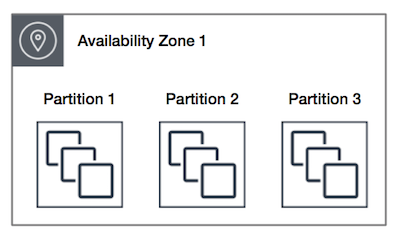
  • is a group of instances spread across partitions i.e. group of instances spread across racks.
  • Partitions are logical groupings of instances, where contained instances do not share the same underlying hardware across different partitions.
  • EC2 divides each group into logical segments called partitions.
  • EC2 ensures that each partition within a placement group has its own set of racks. Each rack has its own network and power source.
  • No two partitions within a placement group share the same racks, allowing isolating the impact of a hardware failure within the application.
  • reduces the likelihood of correlated hardware failures for the application.
  • can have partitions in multiple Availability Zones in the same region
  • can have a maximum of seven partitions per Availability Zone
  • number of instances that can be launched into a partition placement group is limited only by the limits of the account.
  • When instances are launched into a partition placement group, EC2 tries to evenly distribute the instances across all partitions. EC2 does not guarantee an even distribution.
  • can be used to spread deployment of large distributed and replicated workloads, such as HDFS, HBase, and Cassandra, across distinct hardware.
  • offer visibility into the partitions and the instances to partitions mapping can be seen. This information can be shared with topology-aware applications, such as HDFS, HBase, and Cassandra. These applications use this information to make intelligent data replication decisions for increasing data availability and durability.
  • Capacity Reservations do not reserve capacity in a partition placement group.

Spread Placement Groups

  • is a group of instances that are each placed on distinct underlying hardware i.e. each instance on a distinct rack with each rack having its own network and power source.
  • recommended for applications that have a small number of critical instances that should be kept separate from each other.
  • reduces the risk of simultaneous failures that might occur when instances share the same underlying hardware.
  • provide access to distinct hardware, and are therefore suitable for mixing instance types or launching instances over time.
  • can span multiple Availability Zones in the same region.
  • can have a maximum of seven running instances per AZ per group
  • maximum number of instances = 1 instance per rack * 7 racks * No. of AZs for e.g. in a Region with three AZs, a total of 21 instances in the group (seven per zone) can be launched
  • If the start or launch of an instance in a spread placement group fails cause of insufficient unique hardware to fulfil the request, the request can be tried later as EC2 makes more distinct hardware available over time
  • Capacity Reservations do not reserve capacity in a spread placement group.

Spread Placement Group Levels

  • Placement groups can spread instances across racks or hosts.
  • Rack level spread (default) – each instance is placed on a distinct rack. Available in AWS Regions and on AWS Outposts.
  • Host level spread – each instance is placed on a distinct host. Available only with AWS Outposts.
  • On Outposts, a rack level spread placement group can hold as many instances as you have racks in your Outpost deployment.
  • On Outposts, a host level spread placement group can hold as many instances as you have hosts in your Outpost deployment.

Placement Group Sharing (Cross-Account)

  • Placement groups can be shared across multiple AWS accounts using AWS Resource Access Manager (RAM).
  • To share a placement group, create a resource share through AWS RAM, add the placement group as a resource, and specify the target accounts.
  • Instances from different AWS accounts can be launched into the same shared placement group for low-latency communication.
  • A shared partition placement group supports a maximum of seven partitions per Availability Zone.
  • A shared spread placement group supports a maximum of seven running instances per Availability Zone.
  • You can’t view or modify instances and capacity reservations associated with a shared placement group but not owned by you.
  • Use case: Enables scenarios like HFT (High-Frequency Trading) where multiple accounts need low-latency communication within the same placement group.

Placement Group Rules and Limitations

  • Ensure unique Placement group name within AWS account for the region.
  • A maximum of 500 placement groups can be created per account in each Region.
  • Placement groups cannot be merged.
  • An instance can be placed in one placement group at a time; you can’t place an instance in multiple placement groups.
  • You can’t launch Dedicated Hosts in placement groups.
  • Instances can be moved to or removed from placement groups using the Modify Instance Placement action (instance must be in stopped state).
  • Cluster Placement groups
    • can’t span multiple Availability Zones.
    • supported by current generation instance types, except for burstable performance instances (e.g., T2, T3), Mac1 instances, and M7i-flex instances.
    • also supports previous generation instances: A1, C3, C4, I2, M4, R3, and R4.
    • maximum network throughput speed of traffic between two instances in a cluster placement group is limited by the slower of the two instances, so choose the instance type properly.
    • can use up to 10 Gbps for single-flow traffic. Instances not within a cluster placement group can use up to 5 Gbps for single-flow traffic.
    • Traffic to and from S3 buckets within the same region over the public IP address space or through a VPC endpoint can use all available instance aggregate bandwidth.
    • recommended using the same instance type i.e. homogenous instance types. Although multiple instance types can be launched into a cluster placement group. However, this reduces the likelihood that the required capacity will be available for your launch to succeed.
    • Network traffic to the internet and over an AWS Direct Connect connection to on-premises resources is limited to 5 Gbps.
    • Supports On-Demand Capacity Reservations to explicitly reserve capacity. Zonal Reserved Instances cannot reserve capacity in a placement group.
  • Partition placement groups
    • supports a maximum of seven partitions per Availability Zone
    • Dedicated Instances can have a maximum of two partitions
    • are not supported for Dedicated Hosts
    • Capacity Reservations do not reserve capacity in a partition placement group
  • Spread placement groups
    • supports a maximum of seven running instances per Availability Zone for e.g., in a region that has three AZs, then a total of 21 running instances in the group (seven per zone).
    • are not supported for Dedicated Instances.
    • Host level spread placement groups are only supported on AWS Outposts.
    • Capacity Reservations do not reserve capacity in a spread placement group.

ENA Express and Placement Groups

  • ENA Express uses the Scalable Reliable Datagram (SRD) protocol to increase the maximum single-flow bandwidth up to 25 Gbps between EC2 instances without requiring a cluster placement group.
  • ENA Express also provides up to 85% improvement in P99.9 latency for high throughput workloads.
  • Works transparently with TCP and UDP protocols.
  • For the absolute highest performance (lowest latency + highest PPS), a cluster placement group combined with enhanced networking and Jumbo Frames (9001 MTU) remains the best option.

AWS Certification Exam Practice Questions

  • Questions are collected from Internet and the answers are marked as per my knowledge and understanding (which might differ with yours).
  • AWS services are updated everyday and both the answers and questions might be outdated soon, so research accordingly.
  • AWS exam questions are not updated to keep up the pace with AWS updates, so even if the underlying feature has changed the question might not be updated
  • Open to further feedback, discussion and correction.
  1. What is a cluster placement group?
    • A collection of Auto Scaling groups in the same Region
    • Feature that enables EC2 instances to interact with each other via high bandwidth, low latency connections
    • A collection of Elastic Load Balancers in the same Region or Availability Zone
    • A collection of authorized Cloud Front edge locations for a distribution
  2. In order to optimize performance for a compute cluster that requires low inter-node latency, which feature in the following list should you use?
    • AWS Direct Connect
    • Cluster Placement Groups
    • VPC private subnets
    • EC2 Dedicated Instances
    • Multiple Availability Zones
  3. What is required to achieve gigabit network throughput on EC2? You already selected cluster-compute, 10GB instances with enhanced networking, and your workload is already network-bound, but you are not seeing 10 gigabit speeds.
    1. Enable biplex networking on your servers, so packets are non-blocking in both directions and there’s no switching overhead.
    2. Ensure the instances are in different VPCs so you don’t saturate the Internet Gateway on any one VPC.
    3. Select PIOPS for your drives and mount several, so you can provision sufficient disk throughput
    4. Use a Cluster placement group for your instances so the instances are physically near each other in the same Availability Zone. (You are not guaranteed 10 gigabit performance, except within a placement group. Using placement groups enables applications to participate in a low-latency, 10 Gbps network)
  4. You need the absolute highest possible network performance for a cluster computing application. You already selected homogeneous instance types supporting 10 gigabit enhanced networking, made sure that your workload was network bound, and put the instances in a placement group. What is the last optimization you can make?
    1. Use 9001 MTU instead of 1500 for Jumbo Frames, to raise packet body to packet overhead ratios. (For instances that are collocated inside a placement group, jumbo frames help to achieve the maximum network throughput possible, and they are recommended in this case)
    2. Segregate the instances into different peered VPCs while keeping them all in a placement group, so each one has its own Internet Gateway.
    3. Bake an AMI for the instances and relaunch, so the instances are fresh in the placement group and do not have noisy neighbors
    4. Turn off SYN/ACK on your TCP stack or begin using UDP for higher throughput.
  5. A company needs to deploy a distributed database across multiple racks for fault isolation while maintaining rack-level visibility for data replication decisions. Which placement group strategy should they use?
    1. Cluster placement group
    2. Partition placement group
    3. Spread placement group
    4. Default placement (no placement group)
  6. An organization has multiple AWS accounts that need instances in the same placement group for low-latency communication. How can they achieve this?
    1. Create identical placement groups with the same name in each account
    2. Use VPC peering between the accounts
    3. Share the placement group across accounts using AWS Resource Access Manager (RAM)
    4. Launch all instances from a single account and use IAM cross-account roles
  7. Which of the following statements about spread placement groups are correct? (Choose 2)
    1. A rack level spread placement group supports a maximum of seven running instances per Availability Zone
    2. Host level spread placement groups are available in all AWS Regions
    3. Spread placement groups support Dedicated Instances
    4. Spread placement groups can span multiple Availability Zones in the same Region
  8. A team wants to move an existing running instance into a cluster placement group. What is the correct procedure?
    1. Use the modify-instance-placement command while the instance is running
    2. Create an AMI and launch a new instance into the placement group
    3. Stop the instance, use modify-instance-placement to assign it to the placement group, then start it
    4. Terminate the instance and launch a new one in the placement group

References

Related Posts

AWS EC2 Storage

EC2 Storage Overview

EC2 Storage Options - EBS, S3 & Instance Store

Storage Types

Elastic Block Store – EBS

  • Elastic Block Store – EBS provides highly available, reliable, durable, block-level storage volumes that can be attached to an EC2 instance.
  • persists independently from the running life of an instance.
  • behaves like a raw, unformatted, external block device that can be attached to a single EC2 instance at a time (except Multi-Attach enabled io1/io2 volumes that can attach to up to 16 Nitro-based instances).
  • is recommended for data that requires frequent and granular updates e.g. running a database or filesystem.
  • is Zonal and can be attached to any instance within the same Availability Zone and can be used like any other physical hard drive.
  • is particularly well-suited for use as the primary storage for file systems, databases, or any applications that require fine granular updates and access to raw, unformatted, block-level storage.
  • provides six volume types: Provisioned IOPS SSD (io2 Block Express and io1), General Purpose SSD (gp3 and gp2), Throughput Optimized HDD (st1) and Cold HDD (sc1).
  • General Purpose SSD (gp3) volumes support up to 64 TiB, 80,000 IOPS, and 2,000 MiB/s throughput (enhanced in September 2025 from 16 TiB, 16,000 IOPS, 1,000 MiB/s).
  • Provisioned IOPS SSD (io2 Block Express) volumes support up to 64 TiB, 256,000 IOPS, and 4,000 MB/s throughput with sub-millisecond latency and 99.999% durability.
  • supports data protection features including Snapshots, EBS Snapshot Archive, Recycle Bin (accidental deletion protection), and Snapshot Lock (WORM protection).

Instance Store Storage

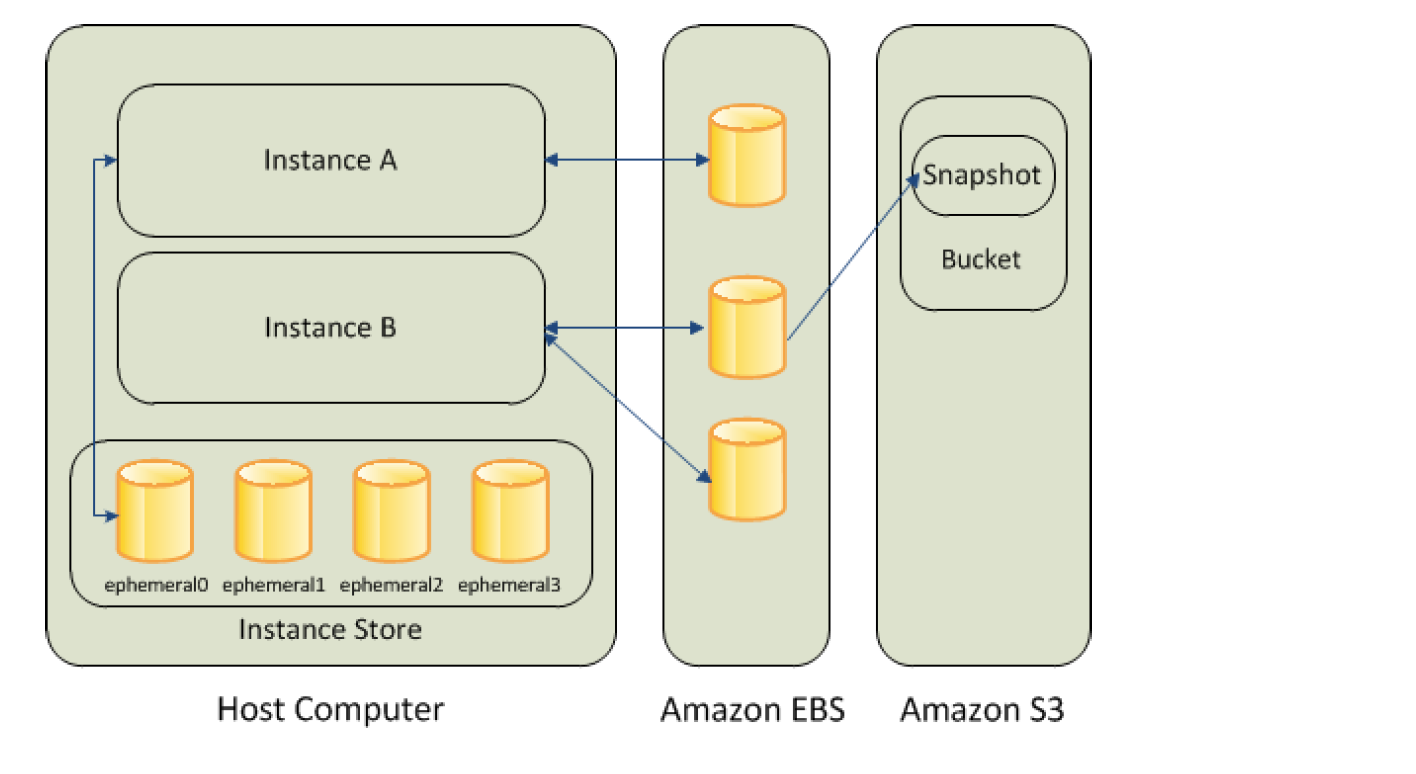
  • Instance store provides temporary or Ephemeral block-level storage.
  • is located on the disks that are physically attached to the host computer.
  • consists of one or more instance store volumes exposed as block devices.
  • The size of an instance store varies by instance type.
  • Virtual devices for instance store volumes are ephemeral[0-23], starting the first one as ephemeral0 and so on.
  • While an instance store is dedicated to a particular instance, the disk subsystem is shared among instances on a host computer.
  • is ideal for temporary storage of information that changes frequently, such as buffers, caches, scratch data, and other temporary content, or for data that is replicated across a fleet of instances, such as a load-balanced pool of web servers.
  • delivers very high random I/O performance and is a good option for storage with very low latency requirements, but you don’t need the data to persist when the instance terminates or you can take advantage of fault-tolerant architectures.
  • Data is lost when the instance is stopped, terminated, or the underlying host fails. Data persists during an instance reboot.
  • Instance store volumes are included as part of the usage cost of the instance.

Amazon EBS vs Instance Store

More detailed @ Comparison of EBS vs Instance Store

Simple Storage Service – S3

More details @ AWS S3

Elastic File System – EFS

  • Elastic File System – EFS provides a simple, fully managed, easy-to-set-up, scalable, serverless, and cost-optimized file storage.
  • can automatically scale from gigabytes to petabytes of data without needing to provision storage.
  • provides managed NFS (network file system) that can be mounted on and accessed by multiple EC2 instances in multiple AZs simultaneously.
  • offers highly durable, highly scalable, and highly available storage.
    • EFS Regional file systems (recommended) store data redundantly across multiple AZs in the same region.
    • EFS One Zone file systems provide lower-cost option storing data in a single AZ.
    • grows and shrinks automatically as files are added and removed, so there is no need to manage storage procurement or provisioning.
  • supports the Network File System version 4 (NFSv4.1 and NFSv4.0) protocol.
  • provides file system access semantics, such as strong data consistency and file locking.
  • is compatible with all Linux-based AMIs for EC2, POSIX file system (~Linux) that has a standard file API.
  • is a shared POSIX system for Linux systems and does not work for Windows (use FSx for Windows File Server instead).
  • offers the ability to encrypt data at rest using KMS and in transit.
  • can be accessed from on-premises using an AWS Direct Connect or AWS VPN connection between the on-premises datacenter and VPC.
  • can be accessed concurrently from servers in the on-premises data center as well as EC2 instances in the VPC.
  • supports up to 2.5 million read IOPS and 500,000 write IOPS per file system (10x increase announced Nov 2024).
  • supports Elastic Throughput of up to 60 GiB/s read and 5 GiB/s write throughput per file system.
  • supports up to 10,000 access points per file system for application-specific access management (increased Feb 2025).
  • supports IPv6 for both EFS APIs and mount targets (added Jun 2025).

Amazon FSx

  • Amazon FSx provides fully managed file storage built on four widely-used file systems: Lustre, NetApp ONTAP, OpenZFS, and Windows File Server.
  • FSx for Windows File Server – provides fully managed Windows-native shared file storage using SMB protocol. Supports Windows features like Active Directory, DFS, and shadow copies.
  • FSx for Lustre – provides high-performance file storage optimized for fast processing of workloads such as ML, HPC, video processing, and financial modeling. Delivers up to terabytes/second of throughput and millions of IOPS.
  • FSx for NetApp ONTAP – provides fully managed shared storage with NetApp ONTAP features including snapshots, clones, FlexClone, SnapMirror replication. Supports NFS, SMB, and iSCSI protocols.
  • FSx for OpenZFS – provides fully managed shared storage powered by OpenZFS file system. Delivers up to 21 GB/s throughput and over 1 million IOPS for cached data. Supports NFS protocol with data compression, snapshots, and cloning.
  • Use FSx for Windows File Server for Windows-based applications that need SMB protocol.
  • Use FSx for Lustre for compute-intensive workloads requiring the fastest storage performance.

Block Device Mapping

  • A block device is a storage device that moves data in sequences of bytes or bits (blocks) and supports random access and generally use buffered I/O for e.g. hard disks, CD-ROM etc
  • Block devices can be physically attached to a computer (like an instance store volume) or can be accessed remotely as if it was attached (like an EBS volume)
  • Block device mapping defines the block devices to be attached to an instance, which can either be done while creation of an AMI or when an instance is launched
  • Block device must be mounted on the instance, after being attached to the instance, to be able to be accessed
  • When a block device is detached from an instance, it is unmounted by the operating system and you can no longer access the storage device.
  • Additional Instance store volumes can be attached only when the instance is launched while EBS volumes can be attached to a running instance.
  • Viewing the block device mapping for an instance only shows the EBS volumes and not the instance store volumes. Instance metadata can be used to query the complete block device mapping.

AWS Open Data (Registry of Open Data on AWS)

  • AWS provides the Registry of Open Data on AWS that makes high-value, cloud-optimized datasets publicly available for analysis on AWS.
  • The registry has surpassed 1,000+ datasets and over 100 petabytes of data available for public use.
  • Datasets are also discoverable on AWS Data Exchange alongside 3,000+ existing data products.
  • There is no charge for accessing the public data sets. You pay only for the compute and storage you use for your own applications.
  • Previously referred to as “AWS Public Data Sets,” this is now the AWS Open Data Sponsorship Program.

EC2 Storage Comparison

Feature EBS Instance Store EFS S3
Storage Type Block Block File (NFS) Object
Persistence Persistent Ephemeral Persistent Persistent
Scope Single AZ Single Instance Regional (Multi-AZ) Regional (Multi-AZ)
Access Single instance (or Multi-Attach for io1/io2) Single instance Multiple instances concurrently Multiple instances/services
Performance Up to 256K IOPS (io2 BE) Very high random I/O Up to 2.5M read IOPS Virtually unlimited
Use Case Databases, boot volumes Buffers, caches, temp data Shared file systems, CMS Backups, data lakes, static content
OS Support Linux/Windows Linux/Windows Linux only Any (via API)

AWS Certification Exam Practice Questions

  • Questions are collected from Internet and the answers are marked as per my knowledge and understanding (which might differ with yours).
  • AWS services are updated everyday and both the answers and questions might be outdated soon, so research accordingly.
  • AWS exam questions are not updated to keep up the pace with AWS updates, so even if the underlying feature has changed the question might not be updated
  • Open to further feedback, discussion and correction.
  1. When you view the block device mapping for your instance, you can see only the EBS volumes, not the instance store volumes.
    1. Depends on the instance type
    2. FALSE
    3. Depends on whether you use API call
    4. TRUE
  1. Amazon provides the Registry of Open Data on AWS that makes high-value datasets publicly available. What is the monthly charge for using the public data sets?
    1. A 1 time charge of 10$ for all the datasets.
    2. 1$ per dataset per month
    3. 10$ per month for all the datasets
    4. There is no charge for using the public data sets
  1. How many types of block devices does Amazon EC2 support?
    1. 2 (EBS volumes and Instance Store volumes)
    2. 4
    3. 3
    4. 1
  1. A company needs shared file storage for Linux-based EC2 instances across multiple Availability Zones. Which AWS storage service should they use?
    1. Amazon EBS with Multi-Attach
    2. Amazon S3
    3. Amazon EFS
    4. Amazon FSx for Windows File Server
  1. Which EC2 storage option provides the highest random I/O performance but does NOT persist data when the instance is stopped or terminated?
    1. Amazon EBS gp3
    2. Amazon EBS io2 Block Express
    3. EC2 Instance Store
    4. Amazon EFS
  1. A company requires Windows-based shared file storage with SMB protocol support. Which AWS service is the most appropriate?
    1. Amazon EFS
    2. Amazon EBS
    3. Amazon FSx for Windows File Server
    4. Amazon S3
  1. Which statement about EBS Multi-Attach is correct?
    1. Multi-Attach is supported on all EBS volume types
    2. Multi-Attach allows io1/io2 volumes to be attached to up to 16 Nitro-based instances in the same AZ
    3. Multi-Attach allows volumes to be attached to instances across multiple AZs
    4. Multi-Attach is only supported on gp3 volumes
  1. What is the maximum IOPS supported by Amazon EBS General Purpose SSD (gp3) volumes? [Updated Sept 2025]
    1. 16,000 IOPS
    2. 64,000 IOPS
    3. 80,000 IOPS
    4. 256,000 IOPS

References

AWS EC2 EBS Monitoring

EBS Monitoring

AWS supports EBS monitoring by automatically providing data, such as CloudWatch metrics and volume status checks to help monitor EBS volumes.

CloudWatch Monitoring

  • CloudWatch metrics are statistical data that you can use to view, analyze, and set alarms on the operational behavior of the EBS volumes.
  • All Amazon EBS volume types automatically send 1-minute metrics to CloudWatch at no additional charge, but only when the volume is attached to an instance.
  • Some metrics have differences on Nitro-based instances vs. Xen-based instances.
  • EBS Metrics (AWS/EBS namespace)
    • VolumeReadBytes & VolumeWriteBytes
      • Provides information on the I/O operations in a specified period of time, in bytes.
    • VolumeReadOps & VolumeWriteOps
      • Total number (count) of I/O operations in a specified period of time.
    • VolumeTotalReadTime & VolumeTotalWriteTime
      • Total number of seconds spent by all operations that were completed in a specified period of time.
      • For Xen instances, data is reported only when there is read/write activity on the volume.
    • VolumeIdleTime
      • Total number of seconds, in a specific period, when the volume was idle (no read and write operations).
    • VolumeQueueLength
      • Number of read and write operations, in a specific period, waiting to be completed.
    • VolumeThroughputPercentage (Provisioned IOPS SSD volumes only)
      • Percentage of I/O operations per second (IOPS) delivered of the total IOPS provisioned.
    • VolumeConsumedReadWriteOps (Provisioned IOPS SSD volumes only)
      • Total amount of read and write operations (normalized to 256K capacity units) consumed in a specified period of time.
    • BurstBalance (gp2, st1, and sc1 volumes only)
      • Percentage of I/O credits (for gp2) or throughput credits (for st1 and sc1) remaining in the burst bucket.
      • Data is reported only when the volume is active. If the baseline performance exceeds the maximum burst performance, credits are never spent and burst balance remains at 100%.

I/O Latency Metrics (Nitro Instances Only – Added Oct 2024)

  • VolumeReadLatency
    • The per-minute average read I/O latency for the EBS volume, in milliseconds.
  • VolumeWriteLatency
    • The per-minute average write I/O latency for the EBS volume, in milliseconds.
  • Available at 1-minute granularity at no additional charge for all EBS volumes attached to EC2 Nitro instances.
  • Helps identify if latency is a result of under-provisioned EBS volumes.

Performance Exceeded Check Metrics (Nitro Instances Only – Added Oct 2024)

  • VolumeIOPSExceededCheck
    • Reports whether an application consistently attempted to drive IOPS that exceeds the volume’s provisioned IOPS performance within the last minute.
    • Returns 0 (not exceeded) or 1 (exceeded).
  • VolumeThroughputExceededCheck
    • Reports whether an application consistently attempted to drive throughput that exceeds the volume’s provisioned throughput performance within the last minute.
    • Returns 0 (not exceeded) or 1 (exceeded).
  • Supported for all volume types except magnetic (standard) attached to Nitro instances.
  • Not supported with Multi-Attach enabled volumes.

Average Performance Metrics (Nitro Instances Only – Added Oct 2025)

  • VolumeAvgIOPS
    • The average read and write IOPS driven to the volume in a minute.
    • Returns zero if no operations were driven to the volume within the last minute.
  • VolumeAvgThroughput
    • The average read and write throughput (KiB/s) driven to the volume in a minute.
    • Returns zero if no operations were driven to the volume within the last minute.
  • Useful for tracking performance trends, detecting bottlenecks, and right-sizing provisioned performance.

Instance-Level EBS Metrics (AWS/EC2 Namespace – Nitro Instances)

  • InstanceEBSIOPSExceededCheck (Added Oct 2025)
    • Reports whether driven IOPS is exceeding the maximum EBS IOPS that the instance can support within the last minute.
    • Returns 0 (not exceeded) or 1 (exceeded).
  • InstanceEBSThroughputExceededCheck (Added Oct 2025)
    • Reports whether driven throughput is exceeding the maximum EBS throughput limits for the instance within the last minute.
    • Returns 0 (not exceeded) or 1 (exceeded).
  • EBSReadOps & EBSWriteOps
    • Completed read/write operations from all EBS volumes attached to the instance.
  • EBSIOBalance% & EBSByteBalance%
    • Percentage of I/O credits and throughput credits remaining for burst-capable instances.
    • Available for instances that burst to their maximum performance for 30 minutes at least once every 24 hours.

CloudWatch Agent – EBS Detailed Performance Statistics (Added Jun 2025)

  • The CloudWatch agent can collect NVMe-based detailed performance statistics from EBS volumes attached to Nitro instances.
  • Metrics include queue depth, number of operations, bytes sent and received, and time spent on read and write I/O operations.
  • Available at sub-minute granularity as custom metrics in CloudWatch.
  • Provides deeper visibility beyond standard CloudWatch metrics for performance-sensitive workloads.

Volume Status Checks Monitoring

EC2 EBS Volume Status Check Monitoring

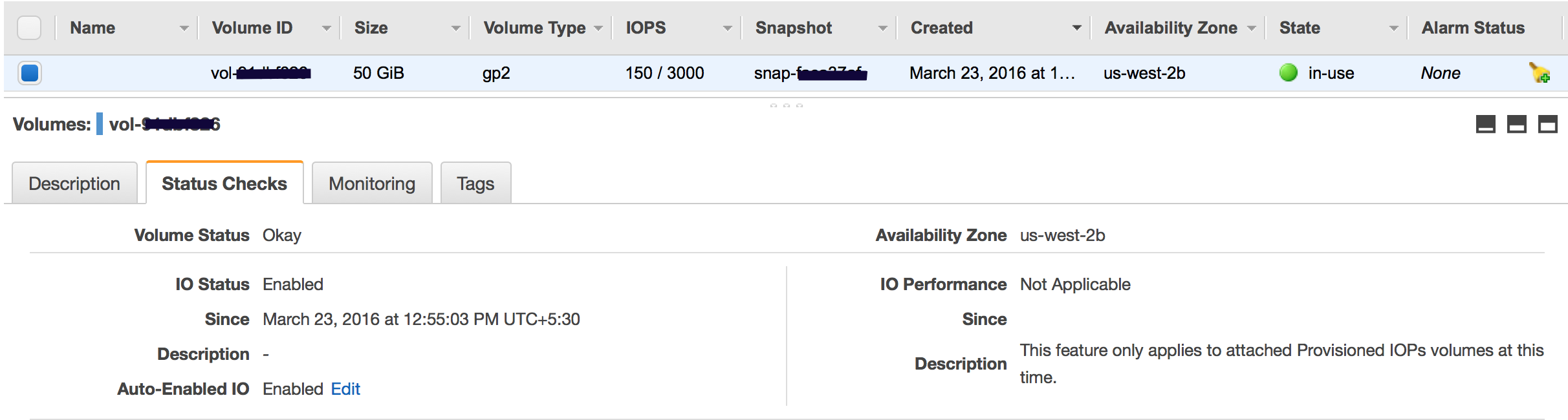
  • Volume status checks are automated tests that run every 5 minutes and return a pass or fail status.
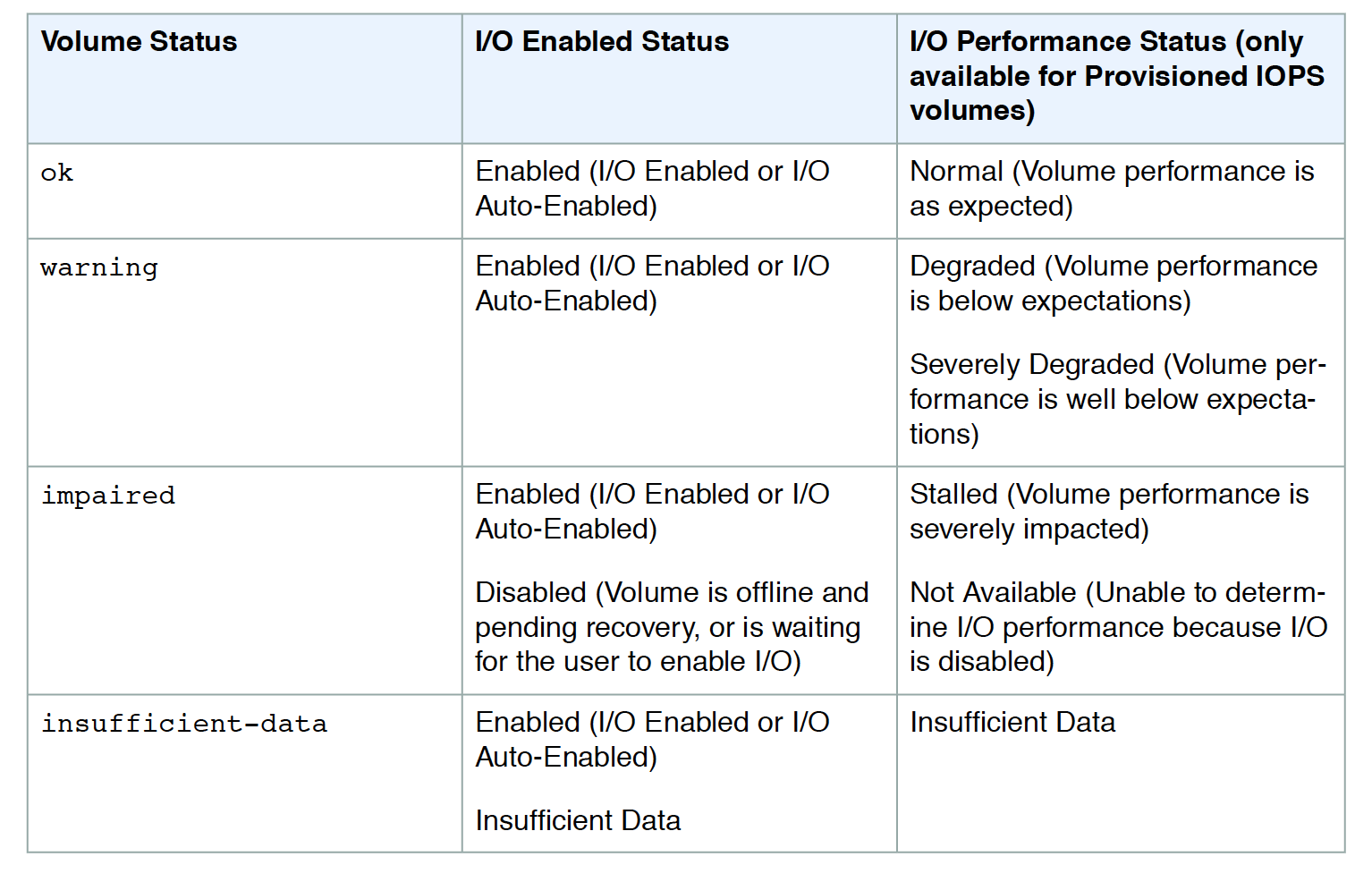
  • Volume check status
    • Ok – all the status checks passed
    • Impaired – if the status checks failed
    • Insufficient-Data – checks are still in progress
    • Warning – the I/O performance of the volume is below expectations
  • When EBS determines the volume’s data is potentially inconsistent, it disables the I/O to the EBS volume from the attached EC2 instance to prevent any data corruption. This leads to the status check to fail and the volume status being impaired. Amazon waits for the I/O to be enabled, giving you an opportunity to perform consistency checks.
  • If the auto disabling of I/O is not needed, it can be overridden by enabling the Auto-Enabled IO flag, which would make the EBS volume auto-available immediately after the impaired status.
  • Events would be fired for notification whenever the I/O for an EBS volume is disabled.
  • I/O performance status checks compare actual volume performance with the expected volume performance and alert if performing below expectations. Applicable to io1, io2, and gp3 volumes.
  • While initializing Provisioned IOPS (SSD) volumes that were restored from snapshots, the performance of the volume may drop below 50 percent of its expected level, which causes the volume to display a warning state in the I/O Performance status check. This is expected and can be ignored.

EC2 EBS Volume Status

Attached EBS Status Checks (Added Aug 2024)

  • Amazon EC2 now includes a third type of status check — Attached EBS Status Check — that monitors whether the EBS volumes attached to an instance are reachable and can complete I/O operations.
  • The CloudWatch metric StatusCheckFailed_AttachedEBS reports a binary value:
    • 0 – All attached EBS volumes are reachable and can complete I/O.
    • 1 – One or more attached EBS volumes are impaired and unable to complete I/O operations.
  • Available for Nitro-based EC2 instances.
  • Enables creating CloudWatch alarms to automatically detect and respond to EBS volume reachability issues at the instance level.
  • Three types of EC2 status checks now exist:
    • System status checks – monitor the AWS systems the instance runs on.
    • Instance status checks – monitor the instance’s software and network configuration.
    • Attached EBS status checks – monitor reachability of attached EBS volumes.

Volume Initialization Status Monitoring (Added Jul 2025)

  • EBS now provides visibility into volume initialization status for volumes created from snapshots.
  • Allows you to validate when all blocks have been downloaded and written to the volume, enabling fully provisioned performance.
  • Can be used to time application launches to align with volume initialization completion.
  • EBS also supports Provisioned Rate for Volume Initialization (Added May 2025) that allows specifying a volume initialization rate between 100-300 MiB/s for faster initialization of snapshot-restored volumes.
  • EventBridge events are published for volume initialization state changes.

Volume Events Monitoring

  • EBS sends events to Amazon EventBridge for volume status changes and actions performed on volumes and snapshots.
  • Each event includes a start time that indicates the time at which the event occurred and a duration that indicates how long I/O for the volume was disabled.
  • Events description can be:
    • Awaiting Action: Enable IO – Volume data is potentially inconsistent, I/O is disabled.
    • IO Enabled – I/O operations were explicitly enabled for this volume.
    • IO Auto-Enabled – I/O operations were automatically enabled on this volume after an event.
    • Normal – For io1, io2, and gp3 volumes only. Volume performance is as expected.
    • Degraded – For io1, io2, and gp3 volumes only. Volume performance is below expectations.
    • Severely Degraded or Stalled – Volume performance significantly impacted.
  • EventBridge rules can trigger programmatic actions in response to these events (e.g., send notifications, invoke Lambda functions).

AWS Certification Exam Practice Questions

  • Questions are collected from Internet and the answers are marked as per my knowledge and understanding (which might differ with yours).
  • AWS services are updated everyday and both the answers and questions might be outdated soon, so research accordingly.
  • AWS exam questions are not updated to keep up the pace with AWS updates, so even if the underlying feature has changed the question might not be updated
  • Open to further feedback, discussion and correction.
  1. A user has configured CloudWatch monitoring on an EBS backed EC2 instance. If the user has not attached any additional device, which of the below mentioned metrics will always show a 0 value?
    1. DiskReadBytes
    2. NetworkIn
    3. NetworkOut
    4. CPUUtilization
  2. What does it mean if you have zero IOPS and a non-empty I/O queue for all EBS volumes attached to a running EC2 instance?
    1. The I/O queue is buffer flushing.
    2. Your EBS disk head(s) is/are seeking magnetic stripes.
    3. The EBS volume is unavailable. (EBS volumes are unavailable when all of the attached volumes perform zero read write IO, with pending IO in the queue. Refer link)
    4. You need to re-mount the EBS volume in the OS.
  3. While performing the volume status checks, if the status is insufficient-data, what does it mean?
    1. checks may still be in progress on the volume
    2. check has passed
    3. check has failed
  4. An application running on an EC2 instance with an io2 EBS volume is experiencing intermittent latency spikes. Which NEW CloudWatch metrics should be used to identify if the volume is under-provisioned? (Choose 2)
    1. VolumeReadLatency and VolumeWriteLatency
    2. VolumeQueueLength
    3. VolumeIOPSExceededCheck
    4. VolumeIdleTime
    5. VolumeTotalReadTime
  5. A company wants to monitor whether EBS volume performance bottlenecks are caused by the volume limits or the EC2 instance limits. Which combination of metrics should be used?
    1. VolumeReadOps and VolumeWriteOps
    2. BurstBalance and VolumeQueueLength
    3. VolumeIOPSExceededCheck (volume-level) and InstanceEBSIOPSExceededCheck (instance-level)
    4. EBSIOBalance% and VolumeThroughputPercentage
  6. After the August 2024 update, how many types of EC2 status checks are available?
    1. One – System status check
    2. Two – System and Instance status checks
    3. Three – System, Instance, and Attached EBS status checks
    4. Four – System, Instance, EBS Volume, and Network status checks

References

AWS EC2 Networking – ENI, ENA & EFA

EC2 Network Features

EC2 Network covers a lot of features for low latency access, High Performance Computing, Enhanced Networking, ENA Express, Elastic Fabric Adapter, etc.

📌 Key Updates (2024-2026):

  • EC2-Classic fully retired (August 2023) – All instances now run in VPC only
  • Public IPv4 address charges – $0.005/IP/hour for ALL public IPv4 addresses (February 2024)
  • ENA Express – Up to 25 Gbps single-flow bandwidth using SRD protocol, now supports cross-AZ traffic (2026)
  • Network bandwidth – Up to 600 Gbps with C8gn/R8gn instances (6th gen Nitro Cards)
  • Jumbo frames – Cross-region VPC peering now supports up to 8500 bytes MTU (March 2025)
  • Instance Bandwidth Weighting – Adjust VPC/EBS bandwidth split by up to 25% (December 2024)

EC2 and VPC

  • All EC2 instances run exclusively within a VPC
  • EC2-Classic was fully retired in August 2023. All instances must be launched in a VPC.
  • Launching an EC2 instance within a VPC provides the following benefits
    • Assign static private IP addresses to instances that persist across starts and stops
    • Assign multiple IP addresses to the instances
    • Define network interfaces, and attach one or more network interfaces to the instances
    • Change security group membership for the instances while they’re running
    • Control the outbound traffic from the instances (egress filtering) in addition to controlling the inbound traffic to them (ingress filtering)
    • Add an additional layer of access control to the instances in the form of network access control lists (ACL)
    • Run the instances on single-tenant dedicated hardware
    • Launch instances in IPv6-only, dual-stack, or IPv4-only subnets

EC2 Instance IP Addressing

  • Private IP address & Internal DNS Hostnames
    • Private IP address is the IP address that’s not reachable over the internet and can be resolved only within the network
    • When an instance is launched, the default network interface eth0 is assigned a private IP address and an internal DNS hostname, which resolves to the private IP address and can be used for communication between the instances in the same network only
    • Private IP address and DNS hostname cannot be resolved outside the network that the instance is in.
    • Private IP address behaviour
      • remains associated with the instance when it is stopped or rebooted
      • is disassociated only when the instance is terminated
    • An instance when launched can be assigned a private IP address or EC2 will automatically assign an IP address to the instance within the address range of the subnet
    • Additional private IP addresses, known as secondary private IP addresses can also be assigned. Unlike primary private IP addresses, secondary private IP addresses can be reassigned from one instance to another.
  • Public IP address and External DNS hostnames
    • A public IP address is reachable from the Internet
    • Each instance assigned a public IP address is also given an External DNS hostname.
    • External DNS hostname resolves to the public IP address outside the network and to the private IP address within the network.
    • Public IP address is associated with the primary Private IP address through NAT
    • Within a VPC, an instance may or may not be assigned a public IP address depending upon the subnet Assign Public IP attribute
    • Public IP address assigned to the pool is from the public IP address pool and is assigned to the instance, and not to the AWS account. It cannot be reused once disassociated and is released back to the pool
    • Public IP address behaviour
      • cannot be manually associated or disassociated with an instance
      • is released when an instance is stopped or terminated.
      • a new public IP address is assigned when a stopped instance is started
      • is released when an instance is assigned an Elastic IP address
      • is not assigned if there is more than one network interface attached to the instance
    • As of February 2024, all public IPv4 addresses incur a charge of $0.005 per IP per hour, whether attached to a service or not. This applies to both auto-assigned public IPs and Elastic IPs.
  • IPv6 Addresses
    • IPv6 addresses are globally unique and reachable over the Internet
    • An instance can be launched in an IPv6-only subnet (Nitro-based instances only), dual-stack subnet, or IPv4-only subnet
    • IPv6 addresses persist when an instance is stopped and started
    • IPv6 addresses are not charged, making them a cost-effective alternative to public IPv4
  • Multiple Private IP addresses
    • Multiple private IP addresses can be specified to the instances.
    • This can be useful in the following cases
      • Host multiple websites on a single server by using multiple SSL certificates on a single server and associating each certificate with a specific IP address.
      • Operate network appliances, such as firewalls or load balancers, that have multiple private IP addresses for each network interface.
      • Redirect internal traffic to a standby instance in case the instance fails, by reassigning the secondary private IP address to the standby instance.
    • Multiple IP addresses work with Network Interfaces
      • Secondary IP address can be assigned to any network interface, which can be attached or detached from an instance
      • Secondary IP address must be assigned from the CIDR block range of the subnet for the network interface
      • Security groups apply to network interfaces and not to IP addresses
      • Secondary private IP addresses that are assigned to ENIs attached to running or stopped instances.
      • Secondary private IP addresses that are assigned to a network interface can be reassigned to another one if you explicitly allow it.
      • Primary private IP addresses, secondary private IP addresses, and any associated Elastic IP addresses remain with the network interface when it is detached from an instance or attached to another instance.
      • Although the primary network interface cannot be moved from an instance, the secondary private IP address of the primary network interface can be reassigned to another network interface.
  • IP Prefix Delegation
    • Instead of assigning individual secondary IP addresses, you can assign IP address prefixes to network interfaces
    • IPv4 prefixes: /28 (16 IP addresses) can be assigned per prefix
    • IPv6 prefixes: /80 can be assigned per prefix
    • Significantly increases the number of IP addresses available per ENI
    • Particularly useful for container workloads (e.g., Amazon EKS with VPC CNI plugin) to increase pod density per node
    • Can be auto-assigned or manually specified when creating or modifying a network interface

Elastic IP Addresses

  • An Elastic IP address is a static IPv4 address designed for dynamic cloud computing.
  • An elastic IP address can help mask the failure of an instance or software by rapidly remapping the address to another instance in the account.
  • The elastic IP address is associated with the AWS account and it remains associated with the account until released explicitly
  • An elastic IP address is NOT associated with a particular instance
  • An instance launched in a non-default VPC is assigned only a private IP address unless a public address is specifically requested or the subnet public IP attribute is enabled
  • When an Elastic IP address is assigned to an instance, the public IP address is disassociated with the instance
  • For an instance, without a public IP address, to communicate to the internet it must be assigned an Elastic IP address
  • When the Elastic IP address is dissociated the public IP address is assigned back to the instance. However, if a secondary network interface is attached to the instance, the public IP address is not automatically assigned
  • Elastic IP Address Pricing (Updated February 2024)
    • All public IPv4 addresses (including EIPs) are now charged at $0.005 per IP per hour (~$3.60/month), whether in-use or idle
    • This replaces the previous model where only unused EIPs were charged
    • AWS Free Tier includes 750 hours of public IPv4 address usage per month for the first 12 months
    • You are NOT charged for IP addresses you own and bring to AWS using BYOIP (Bring Your Own IP)
    • Consider migrating to IPv6 to reduce costs
  • All AWS accounts are limited to 5 EIPs per Region (soft limit, can request increase)
  • Elastic IP supports tagging for cost allocation and organization

Elastic Network Interfaces (ENI)

  • Elastic Network Interfaces (ENIs) are virtual network interfaces that can be attached to instances running in a VPC
  • ENI consists of the following
    • A primary private IPv4 address
    • One or more secondary private IPv4 addresses
    • One Elastic IP address per private IPv4 address
    • One public IPv4 address, which can be auto-assigned to the elastic network interface for eth0 when an instance is launched
    • One or more IPv6 addresses
    • One or more security groups
    • A MAC address
    • A source/destination check flag
    • A description
    • IPv4 prefixes (/28) and IPv6 prefixes (/80) for prefix delegation
  • ENI can be created without being attached to an instance
  • ENI can be attached to an instance, detached from that instance and attached to another instance. Attributes of an ENI like elastic IP address, private IP address follow the ENI and when moved from one instance to another instance, all traffic to the ENI will be routed to the new instance.
  • An instance in VPC always has a default primary ENI attached (eth0) with a private IP address assigned from the VPC range and cannot be detached
  • Additional ENI (eth1-ethn) can be attached to the instance and the number varies depending upon the instance type
  • Most important difference between eth0 and eth1 is that eth0 cannot be dynamically attached or detached from a running instance.
  • Primary ENIs (eth0) are created automatically when an EC2 instance is launched and are also deleted automatically when the instance is terminated unless the administrator has changed a property of the ENI to keep it alive afterwards.
  • Multiple elastic network interfaces are useful for use cases:
    • Create a management network
      • Primary ENI eth0 handles backend with more restrictive control
      • Secondary ENI eth1 handles the public facing traffic
    • Licensing authentication
      • Fixed MAC address associated with a license authentication
    • Use network and security appliances in your VPC
      • configure a third-party network and security appliances (load balancers, NAT, proxy) with the secondary ENI
    • Create dual-homed instances with workloads/roles on distinct subnets.
    • Create a low-budget, high-availability solution
      • If one of the instances serving a particular function fails, its elastic network interface can be attached to a replacement or hot standby instance pre-configured for the same role in order to rapidly recover the service
      • As the interface maintains its private IP, EIP, and MAC address, network traffic will begin flowing to the standby instance as soon as it is attached to the replacement instance
  • ENI Best Practices
    • ENI can be attached to an instance when it’s running (hot attach), when it’s stopped (warm attach), or when the instance is being launched (cold attach).
    • Primary (eth0) interface can’t be detached
    • Secondary (ethN) ENI can be detached when the instance is running or stopped.
    • ENI in one subnet can be attached to an instance in another subnet, but the same AZ and same VPC
  • When launching an instance from the CLI or API, both the primary (eth0) and additional elastic network interfaces can be specified
  • Launching an Amazon Linux or Microsoft Windows Server instance with multiple network interfaces automatically configures interfaces, private IP addresses, and route tables on the operating system of the instance.
  • A warm or hot attach of an additional ENI may require bringing up the second interface manually, configure the private IP address, and modify the route table accordingly.
  • Instances running Amazon Linux or Microsoft Windows Server automatically recognize the warm or hot attach and configure themselves.
  • Attaching another ENI to an instance is not a method to increase or double the network bandwidth to or from the dual-homed instance.
  • ENA Queue Allocation (2025) – EC2 now supports flexible ENA queue allocation per ENI, enabling efficient load-balancing of network traffic across available queues on each network interface.

Placement Groups

  • EC2 Placement groups determine how the instances are placed on the underlying hardware.
  • AWS provides three types of placement groups
    • Cluster – clusters instances into a low-latency group in a single AZ
    • Partition – spreads instances across logical partitions, ensuring that instances in one partition do not share underlying hardware with instances in other partitions
    • Spread – strictly places a small group of instances across distinct underlying hardware to reduce correlated failures
  • On-Demand Capacity Reservations in Cluster Placement Groups (2025)
    • CPG-ODCRs provide assured capacity with low latency and high throughput within a Cluster Placement Group
    • Supports sharing and targeting capabilities for cross-account usage
    • Can be scheduled up to 120 days in advance with future-dated capacity reservations

Network Maximum Transmission Unit – MTU

  • MTU of a network connection is the size, in bytes, of the largest permissible packet that can be transferred over the connection.
  • The larger the MTU of the connection the more the data can be transferred in a single packet
  • Largest ethernet packet size supported over most of the internet is 1500 MTU
  • Jumbo Frames
    • Jumbo frames are Ethernet frames that allow more than 1500 bytes of data by increasing the payload size per packet and thus increasing the percentage of the packet that is not packet overhead.
    • Fewer packets are needed to send the same amount of usable data
    • Jumbo frames should be used with caution for Internet-bound traffic or any traffic that leaves a VPC.
    • Packets are fragmented by intermediate systems, which slows down this traffic.
  • Maximum supported MTU for an instance depends on its instance type
  • All EC2 instance types support 1500 MTU, and many current instance sizes support 9001 MTU or Jumbo frames
  • Traffic is limited to a maximum MTU of 1500 in the following cases:
    • Traffic over VPN connections
    • Traffic over an internet gateway
  • Updated MTU Support (March 2025):
    • Cross-region VPC peering now supports jumbo frames up to 8500 bytes MTU (previously limited to 1500)
    • EC2 now supports full instance bandwidth for inter-region VPC peering traffic and to AWS Direct Connect
    • Transit Gateway supports 8500 MTU for all attachments
    • Intra-region VPC peering continues to support 9001 MTU (jumbo frames)
  • For instances that are collocated inside a placement group, jumbo frames help to achieve the maximum network throughput possible, and they are recommended in this case.

Enhanced Networking

  • Enhanced networking results in higher bandwidth, higher packet per second (PPS) performance, lower latency, consistency, scalability, and lower jitter.
  • EC2 provides enhanced networking capabilities using single root I/O virtualization (SR-IOV) on supported instance types
    • SR-IOV is a method of device virtualization that provides higher I/O performance and lower CPU utilization
  • Two mechanisms for enhanced networking:
    • Elastic Network Adapter (ENA) – supports network speeds of up to 100 Gbps (up to 600 Gbps on network-optimized instances). All instances built on the AWS Nitro System use ENA.
    • Intel 82599 Virtual Function (VF) interface – uses the Intel ixgbevf driver, supports up to 10 Gbps. Only for legacy Xen-based instance types (C3, C4, R3, I2, M4, D2).
  • All current-generation instances support enhanced networking via ENA
  • Enhanced networking is available only within a VPC

ENA Express

  • ENA Express is an enhanced networking feature that uses the AWS Scalable Reliable Datagram (SRD) protocol to improve network performance
  • SRD is a high-performance network transport protocol that uses dynamic routing to increase throughput and minimize tail latency
  • Key Benefits:
    • Increases maximum single-flow bandwidth from 5 Gbps up to 25 Gbps (up to the aggregate instance limit)
    • Reduces tail latency by up to 93% (P99.9) during periods of high network load
    • Detects and avoids congested network paths through multi-pathing
    • Handles packet reordering and most retransmits in the network layer, freeing the application layer
  • How it works:
    • Enabled per network interface attachment via API call or AWS Console toggle
    • Sending instance initiates SRD communication if both sender and receiver have ENA Express enabled
    • Falls back to standard ENA transmission if the receiving instance does not support ENA Express
    • Works transparently with TCP and UDP protocols
  • Scope:
    • Originally supported traffic within the same Availability Zone only
    • May 2026: ENA Express now supports cross-AZ traffic within a Region, delivering up to 25 Gbps single-flow bandwidth between AZs
  • Supported on a wide range of instance types (120+ instance types as of 2025)
  • ENA Express traffic cannot be sent in a Local Zone
  • Best suited for workloads requiring high single-flow throughput; for workloads needing lowest latency with high PPS during non-congestion, standard enhanced networking may be preferable

Instance Bandwidth Weighting

  • Launched December 2024 – allows adjusting the VPC networking and EBS bandwidth allocation on EC2 instances
  • Customers can shift bandwidth by up to 25% between VPC and EBS in either direction
  • When increasing bandwidth for one service (e.g., VPC), the available bandwidth for the other (EBS) is reduced by the same absolute amount
  • Useful for workloads that are either network-intensive or storage-intensive but not both simultaneously
  • Burst bandwidth remains the same for the selected option on most instance types

Network Bandwidth Capabilities (2025-2026)

  • Network-optimized instances now support up to 600 Gbps network bandwidth:
    • C8gn – Graviton4-based, up to 600 Gbps (GA June 2025)
    • R8gn – Graviton4-based, up to 600 Gbps (GA September 2025)
    • M8gn – Graviton4-based, up to 600 Gbps (GA December 2025)
    • R8in/R8idn – Intel-based, up to 600 Gbps (2026)
  • These instances feature 6th generation AWS Nitro Cards
  • Previous generation network-optimized instances (C6in, R6in, R6idn) support up to 200 Gbps

Elastic Fabric Adapter – EFA

  • An Elastic Fabric Adapter (EFA) is a network device that can be attached to the EC2 instance to accelerate High Performance Computing (HPC) and machine learning applications.
  • EFA helps achieve the application performance of an on-premises HPC cluster, with the scalability, flexibility, and elasticity provided by AWS.
  • EFA provides lower and more consistent latency and higher throughput than the TCP transport traditionally used in cloud-based HPC systems.
  • EFA enhances the performance of inter-instance communication which is critical for scaling HPC and machine learning applications.
  • EFA is optimized to work on the existing AWS network infrastructure and it can scale depending on application requirements.
  • EFAs provide all of the same traditional IP networking features as ENAs, and they also support OS-bypass capabilities. OS-bypass enables HPC and machine learning applications to bypass the operating system kernel and to communicate directly with the EFA device.
  • EFA uses the AWS Scalable Reliable Datagram (SRD) protocol to increase network throughput utilization
  • EFA Updates (2024-2026):
    • Cross-subnet communication (July 2024) – EFA now supports traffic across subnets for both existing and new instances. Requires security group rules to allow cross-subnet traffic.
    • EFA-only interface (October 2024) – New interface type that decouples EFA from ENA. Allows standalone EFA devices on secondary interfaces without requiring IP addresses, solving IPv4 address exhaustion and IP routing challenges for AI/ML clusters.
    • New EFA observability metrics (September 2025) – Metrics for retransmitted packets/bytes, retransmit timeout events, impaired remote connections, and unresponsive remote receiver events.
    • NIXL support with EFA (March 2026) – Accelerates LLM inference at scale through increased KV-cache throughput, reduced inter-token latency, and optimized KV-cache memory utilization.
    • Kubernetes Dynamic Resource Allocation for EFA (May 2026) – Amazon EKS supports DRA for EFA, simplifying RDMA configuration for AI/ML and HPC workloads.
    • SageMaker HyperPod EFA-only support (June 2026) – Dedicated EFA devices without traditional ENA for IP networking in SageMaker clusters.

AWS Certification Exam Practice Questions

  • Questions are collected from Internet and the answers are marked as per my knowledge and understanding (which might differ with yours).
  • AWS services are updated everyday and both the answers and questions might be outdated soon, so research accordingly.
  • AWS exam questions are not updated to keep up the pace with AWS updates, so even if the underlying feature has changed the question might not be updated
  • Open to further feedback, discussion and correction.
  1. A user is launching an EC2 instance in the US East region. Which of the below mentioned options is recommended by AWS with respect to the selection of the availability zone?
    1. Always select the US-East-1-a zone for HA
    2. Do not select the AZ; instead let AWS select the AZ
    3. The user can never select the availability zone while launching an instance
    4. Always select the AZ while launching an instance
  2. You have multiple Amazon EC2 instances running in a cluster across multiple Availability Zones within the same region. What combination of the following should be used to ensure the highest network performance (packets per second), lowest latency, and lowest jitter? Choose 3 answers
    1. Amazon EC2 placement groups (would not work for multiple AZs. Defaults to Cluster)
    2. Enhanced networking (provides network performance, lowest latency)
    3. Amazon PV AMI (Needs HVM)
    4. Amazon HVM AMI
    5. Amazon Linux (Can work on other flavors of Unix as well)
    6. Amazon VPC (Enhanced networking works only in VPC)
  3. Regarding the attaching of ENI to an instance, what does ‘warm attach’ refer to?
    1. Attaching an ENI to an instance when it is stopped
    2. Attaching an ENI to an instance when it is running
    3. Attaching an ENI to an instance during the launch process
  4. Can I detach the primary (eth0) network interface when the instance is running or stopped?
    1. Yes, You can.
    2. You cannot
    3. Depends on the state of the interface at the time
  5. By default what are ENIs that are automatically created and attached to instances using the EC2 console set to do when the attached instance terminates?
    1. Remain as is
    2. Terminate
    3. Hibernate
    4. Pause
  6. Select the incorrect statement
    1. In Amazon VPC, the private IP addresses only returned to Amazon EC2 when the instance is terminated
    2. In Amazon VPC, an instance retains its private IP addresses when the instance is stopped.
    3. In Amazon VPC, an instance does NOT retain its private IP addresses when the instance is stopped
    4. In Amazon VPC, the private IP address is associated exclusively with the instance for its lifetime
  7. To ensure failover capabilities, consider using a _____ for incoming traffic on a network interface”.
    1. primary public IP
    2. secondary private IP
    3. secondary public IP
    4. add on secondary IP
  8. Which statements are true about Elastic Network Interface (ENI)? (Choose 2 answers)
    1. You can attach an ENI in one AZ to an instance in another AZ
    2. You can change the security group membership of an ENI
    3. You can attach an instance to two different subnets within a VPC by using two ENIs
    4. You can attach an ENI in one VPC to an instance in another VPC
  9. A user is planning to host a web server as well as an app server on a single EC2 instance, which is a part of the public subnet of a VPC. How can the user setup to have two separate public IPs and separate security groups for both the application as well as the web server?
    1. Launch a VPC instance with two network interfaces. Assign a separate security group to each and AWS will assign a separate public IP to them. (AWS cannot assign public IPs for instance with multiple ENIs)
    2. Launch VPC with two separate subnets and make the instance a part of both the subnets.
    3. Launch a VPC instance with two network interfaces. Assign a separate security group and elastic IP to them.
    4. Launch a VPC with ELB such that it redirects requests to separate VPC instances of the public subnet.
  10. An organization has created multiple components of a single application for compartmentalization. Currently all the components are hosted on a single EC2 instance. Due to security reasons the organization wants to implement two separate SSLs for the separate modules although it is already using VPC. How can the organization achieve this with a single instance?
    1. Create a VPC instance, which will have both the ACL and the security group attached to it and have separate rules for each IP address.
    2. Create a VPC instance, which will have multiple network interfaces with multiple elastic IP addresses.
    3. You have to launch two instances each in a separate subnet and allow VPC peering for a single IP.
    4. Create a VPC instance, which will have multiple subnets attached to it and each will have a separate IP address.
  11. Your system automatically provisions EIPs to EC2 instances in a VPC on boot. The system provisions the whole VPC and stack at once. You have two of them per VPC. On your new AWS account, your attempt to create a Development environment failed, after successfully creating Staging and Production environments in the same region. What happened?
    1. You didn’t choose the Development version of the AMI you are using.
    2. You didn’t set the Development flag to true when deploying EC2 instances.
    3. You hit the soft limit of 5 EIPs per region and requested a 6th. (There is a soft limit of 5 EIPs per Region for VPC on new accounts. The third environment could not allocate the 6th EIP)
    4. You hit the soft limit of 2 VPCs per region and requested a 3rd.
  12. A user has created a VPC with a public subnet. The user has terminated all the instances, which are part of the subnet. Which of the below mentioned statements is true with respect to this scenario?
    1. The user cannot delete the VPC since the subnet is not deleted
    2. All network interface attached with the instances will be deleted
    3. When the user launches a new instance it cannot use the same subnet
    4. The subnet to which the instances were launched with will be deleted
  13. A company wants to reduce AWS costs after learning about the new public IPv4 address charges. Which combination of approaches would help minimize public IPv4 costs? (Choose 2 answers)
    1. Migrate workloads to IPv6-only subnets where possible (IPv6 addresses are free and eliminate the need for public IPv4)
    2. Use more Elastic IP addresses instead of auto-assigned public IPs (Both EIPs and auto-assigned public IPs are now charged equally at $0.005/IP/hour)
    3. Use NAT Gateway with private subnets for outbound-only internet access (Reduces number of public IPs needed; instances use private IPs)
    4. Switch from VPC to EC2-Classic networking (EC2-Classic was fully retired in August 2023)
  14. Which of the following is a feature of ENA Express? (Choose 2 answers)
    1. Increases maximum single-flow bandwidth from 5 Gbps to 25 Gbps
    2. Requires application code changes to use SRD protocol
    3. Reduces tail latency (P99.9) for network traffic between EC2 instances
    4. Works only with EFA-enabled instances
  15. A machine learning team needs to scale their training cluster to thousands of instances but is running out of private IPv4 addresses. Which EFA feature should they use?
    1. EFA cross-subnet communication
    2. EFA-only network interfaces (EFA-only interfaces decouple EFA from ENA, allowing standalone EFA devices without requiring IP addresses)
    3. ENA Express with SRD protocol
    4. IP prefix delegation on ENIs
  16. An application requires high single-flow network throughput between EC2 instances across Availability Zones. Which feature should be enabled?
    1. Enhanced networking with Intel 82599 VF
    2. Elastic Fabric Adapter (EFA)
    3. ENA Express (ENA Express supports cross-AZ traffic as of May 2026, delivering up to 25 Gbps single-flow bandwidth)
    4. Jumbo frames (9001 MTU)

References
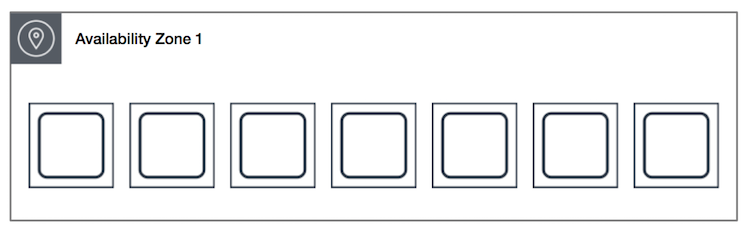
AWS EC2 Amazon Machine Image – AMI

Amazon Machine Image – AMI

  • An Amazon Machine Image – AMI provides the information required to launch an instance, which is a virtual server in the cloud.
  • An AMI is basically a template and can be used to launch as many instances as needed
  • Within a VPC, instances can be launched from as many different AMIs
  • An AMI includes the following:
    • One or more EBS snapshots, or, for instance-store-backed AMIs, a template for the root volume of the instance for e.g, an operating system, an application server, and applications
    • Launch permissions that control which AWS accounts can use the AMI to launch instances for e.g. AWS account ids whom the AMI is shared
    • A block device mapping that specifies the volumes to attach to the instance when it’s launched
  • Amazon Machine Images can be either
    • AWS managed, provided, and published AMIs
    • Third-party or Community provided public custom AMIs
    • Private AMIs created by other AWS accounts and shared with you
    • Private and Custom AMIs created by you

AMI Types

  • Region & Availability Zone
    • are regional but can be copied over to other regions
  • Operating system
    • are available in a variety of OS flavors for e.g. Linux, windows, etc.
  • Architecture (32-bit, 64-bit x86_64, or 64-bit ARM arm64)
    • ARM-based (arm64) AMIs are used with AWS Graviton processors (Graviton2, Graviton3, Graviton4) for better price-performance
  • Launch Permissions
    • Launch permissions define who has access to the AMI
      • Public – Accessible to all AWS accounts
      • Explicit – Shared with specific AWS accounts, Organizations, or Organizational Units (OUs)
      • Private/Implicit – Owned and available for AMI creator account only
  • Boot Mode
    • AMIs can be configured with a boot mode parameter: legacy-bios, uefi, or uefi-preferred
    • UEFI boot mode is required for Graviton instances and supports features like UEFI Secure Boot and NitroTPM
    • If no boot mode parameter is set, Graviton instances default to uefi, while Intel/AMD default to legacy-bios
  • Root device storage
    • can have EBS or Instance store as the root device storage
    • EBS backed
      • EBS volumes are independent of the EC2 instance lifecycle and can persist independently
      • EBS backed instances can be stopped without losing the volumes
      • EBS instance can also be persisted without losing the volumes on instance termination if the Delete On Termination flag is disabled
      • EBS backed instances boot up much faster than the Instance store backed instances as only the parts required to boot the instance needs to be retrieved from the snapshot before the instance is made available
      • AMI creation is much easier for AMIs backed by EBS. The CreateImage API action creates the EBS-backed AMI and registers it
      • EBS-backed AMIs are the recommended and standard approach for all new workloads
    • Instance Store backed
      • Instance store-backed AMIs are considered end of life and are not recommended for new usage.
      • They are only supported on older instance types: C1, C3, D2, I2, M1, M2, M3, R3, and X1.
      • Instance store is ephemeral storage and is dependent on the lifecycle of the Instance
      • Instance store is deleted if the instance is terminated or if the EBS backed instance, with attached instance store volumes, is stopped
      • Instance store volumes cannot be stopped
      • Instance store volumes have their AMI in S3 and have higher boot times compared to EBS backed instances, as all the parts have to be retrieved from S3 before the instance is made available
      • To create Linux AMIs backed by the instance store, you must create an AMI from your instance on the instance itself using the Amazon EC2 AMI tools.

More detailed @ EBS vs Instance Store

Linux Virtualization Types

  • Linux Amazon Machine Images use one of two types of virtualization: paravirtual (PV) or hardware virtual machine (HVM).
  • Main difference between PV and HVM AMIs is the way in which they boot and whether they can take advantage of special hardware extensions (CPU, network, and storage) for better performance.
  • AWS recommends the use of current generation instance types and HVM AMIs for all workloads. PV AMIs are legacy and only supported on older instance types.
  • HVM AMIs
    • HVM AMIs are presented with a fully virtualized set of hardware and boot by executing the master boot record of the root block device of the image.
    • HVM virtualization type provides the ability to run an operating system directly on top of a virtual machine without any modification as if it were run on bare-metal hardware.
    • EC2 host system emulates some or all of the underlying hardware that is presented to the guest.
    • HVM guests, unlike PV guests, can take advantage of hardware extensions that provide fast access to the underlying hardware on the host system.
    • HVM AMIs are required to take advantage of enhanced networking and GPU processing. In order to pass through instructions to specialized network and GPU devices, the OS needs to be able to have access to the native hardware platform; HVM virtualization provides this access.
    • All current generation instance types support HVM AMIs only. HVM is the only virtualization type supported on Nitro-based instances.
  • PV AMIs
    • PV AMIs are legacy. Historically, PV guests had better performance than HVM guests in many cases, but because of enhancements in HVM virtualization and the availability of PV drivers for HVM AMIs, this is no longer true.
    • PV AMIs boot with a special boot loader called PV-GRUB, which starts the boot cycle and then chain loads the kernel specified in the menu.lst file on your image.
    • Paravirtual guests can run on host hardware that does not have explicit support for virtualization, but they cannot take advantage of special hardware extensions such as enhanced networking or GPU processing
    • PV is only supported on older instance types such as C1, C3, M1, M2, M3, and T1.

AMI Lifecycle

  • AMI lifecycle includes the following stages:
    • Create and register an AMI
    • Launch new instances (You can also launch instances from an AMI if the AMI owner grants you launch permissions)
    • Copy an AMI to the same region or to different regions
    • Deprecate the AMI to mark it as outdated
    • Disable the AMI to prevent new launches while retaining it
    • Deregister the AMI when no longer needed

AMI Lifecycle

AMI Deprecation

  • An AMI can be deprecated to indicate that it is out of date and should not be used.
  • Deprecated AMIs are hidden from AMI listings, but users and services can continue to use deprecated AMIs if they know the AMI ID.
  • Public AMIs are automatically deprecated after 2 years from their creation date.
  • Deprecation can be set to a future date (up to 10 years for private AMIs, 2 years for public AMIs).
  • Deprecation does not affect running instances launched from the AMI.

AMI Disable

  • An AMI can be disabled to prevent new instance launches while retaining the AMI and its snapshots.
  • Disabling an AMI changes its state to disabled, makes it private (removes all sharing permissions), and prevents any new EC2 instance launches.
  • Useful for retaining old AMIs for compliance or audit purposes while preventing accidental usage.
  • A disabled AMI can be re-enabled later if needed.

AMI Deregistration Protection

  • AMIs can be marked as protected from accidental deregistration (launched May 2024).
  • A protected AMI cannot be deregistered until deregistration protection is explicitly disabled.
  • Supports a 24-hour cooldown period — after disabling protection, you must wait 24 hours before the AMI can be deregistered.
  • Deregistration protection is turned off by default on all existing and new AMIs.

AMI Creation

EBS-Backed Linux AMI

Screen Shot 2016-04-12 at 7.39.18 AM.png

  • EBS-Backed Linux AMI can be created from the instance directly or from the EBS snapshot
  • EBS-backed Linux AMI creation process:-
    1. Select an AMI #1 similar to what you want to have your new AMI #2
    2. Launch an Instance from AMI #1 and configure it accordingly
    3. Stop the instance to ensure data integrity
    4. Create AMI #2 OR create an EBS snapshot and then create an AMI #2 from the snapshot
    5. Amazon automatically register the EBS-backed AMI
    6. AMI #2 can be now used to launch new instances
  • By default, EC2 shuts down the instance, takes snapshots of any attached volumes, creates and registers the AMI, and then reboots the instance.
  • No Reboot option
    • No Reboot option prevents the instance from shut down & reboot
    • AMI will be crash consistent as all the volumes are snapshotted at the same time
    • However, AMI is not application consistent as all the operating system buffers are not flushed to disk before the snapshots are created and file system integrity can’t be guaranteed
  • EC2 creates snapshots of the instance’s root volume and any other EBS volumes attached to the instance. If any volumes attached to the instance are encrypted, the new AMI only launches successfully on instances that support Amazon EBS encryption
  • For any additional instance-store volumes or EBS volumes, the block device mapping for the new AMI contains information for these volumes and the block device mappings for instances that you launch from the new AMI automatically contain information for these volumes.
  • While data on EBS volumes persist, the Instance-store volumes specified in the block device mapping for the new instance are new and don’t contain any data from the instance store volumes of the instance you used to create the AMI.
  • It’s more efficient to create an EBS-backed AMI with EBS snapshots already taken as the snapshot created during AMI creation is just an incremental one
  • You are charged for the storage of both the image and the snapshots

Instance Store-Backed Linux AMI

Screen Shot 2016-04-12 at 7.39.28 AM.png

  • Note: Instance store-backed AMIs are considered end of life and not recommended for new usage. They are only supported on C1, C3, D2, I2, M1, M2, M3, R3, and X1 instance types.
  • Instance Store-Backed Linux AMI creation process
    1. Select an AMI #1 similar to what you want to have your new AMI #2
    2. Launch an Instance from AMI #1 and configure the instance accordingly
    3. Bundle the Instance. It takes several minutes for the bundling process to complete.
    4. After the process completes, you have a bundle, which consists of an image manifest (image.manifest.xml) and files (image.part.xx) that contain a template for the root volume.
    5. Upload the bundle to the S3 bucket
    6. Register the Instance Store-backed AMI.
    7. Launching an instance using the new AMI #2, the root volume for the instance is created using the bundle that you uploaded to S3.
  • Charges are incurred for the storage space used by the bundle in S3 until deleted
  • For additional instance store volumes, not root volumes, the block device mapping for the new AMI contains information for these volumes and the block device mappings for instances that you launch from the new AMI automatically contain information for these volumes.

Amazon EBS-backed AMI vs Instance Store-backed AMI

Deregistering AMI

  • Charges are incurred on the AMI created and they can be deregistered, if not needed.
  • Deregistering an AMI does not delete the EBS snapshots or the bundles in the S3 buckets and have to be removed separately
  • Once deregistered, new instances cannot be launched from the AMI. However, it does not impact already created instances from the AMI
  • An AMI that has deregistration protection enabled cannot be deregistered until protection is disabled.
  • Clean up EBS-Backed AMI

Screen Shot 2016-04-12 at 8.11.28 AM.png

    • Deregister the EBS-Backed AMI
    • Delete the EBS Snapshot, as deregistering the AMI doesn’t impact the snapshot
  • Clean up Instance Store-backed AMI

Screen Shot 2016-04-12 at 8.11.21 AM.png

    • Deregister the Instance Store-Backed AMI
    • Delete the bundle from the S3 bucket, as deregistering the AMI doesn’t affect the bundles stored in the S3 bucket

AMI Lineage and Ancestry

  • AMI Lineage (launched Nov 2024) provides source details for AMIs, enabling tracing of copied or derived AMIs back to their original source.
  • AMI Ancestry (launched Nov 2025) extends this by enabling complete lineage tracing from any AMI back to the root AMI through each preceding generation.
  • Key benefits:
    • Track AMI derivatives to ensure compliance with internal policies
    • Identify potentially vulnerable AMIs when a security issue is found in an ancestor AMI
    • Maintain visibility of AMI origins across multiple Regions
  • When an AMI is created or copied, the new AMI retains the ID and Region of its source (parent) AMI.
  • Ancestry information is maintained even if intermediate generation AMIs are deleted.
  • Use the GetImageAncestry API or describe-image-ancestry CLI command to retrieve lineage information.

AMI Usage Monitoring

  • Last Launched Time (launched 2022, enhanced May 2024)
    • Tracks when an AMI was last used to launch an EC2 instance
    • Helps identify unused AMIs for cleanup and cost optimization
    • Available via DescribeImages API and EC2 console
  • AMI Usage Reports (launched Sep 2025)
    • Generate reports listing accounts using your AMIs in EC2 instances and launch templates
    • Check utilization of any AMI within your account across instances, launch templates, Image Builder recipes, and SSM parameters
    • Reports are automatically deleted after 30 days

AMI Governance – Allowed AMIs

  • Allowed AMIs (launched Dec 2024) is an account-wide setting that enables limiting the discovery and use of AMIs within AWS accounts.
  • Specify criteria that AMIs must meet to be visible and available within the account.
  • Criteria parameters include:
    • ImageProviders – AMI providers (AWS account IDs, amazon, aws-marketplace, aws-backup-vault aliases)
    • ImageNames – AMI names with wildcard support
    • MarketplaceProductCodes – AWS Marketplace product codes
    • CreationDateCondition – Maximum age for allowed AMIs
    • DeprecationTimeCondition – Maximum period since deprecation
  • Operational states:
    • Enabled – Criteria enforced, only allowed AMIs visible and launchable
    • Disabled – No restrictions
    • Audit mode – Criteria evaluated but not enforced (for testing)
  • Does NOT restrict AMIs owned by your own account — only controls public AMIs and AMIs shared with your account.
  • Can be configured via declarative policies in AWS Organizations for multi-account and multi-region enforcement.
  • Integrates with AWS Config (Mar 2025) using the ec2-instance-launched-with-allowed-ami rule.

AMI Block Public Access

  • AMI Block Public Access (BPA), launched Sep 2023, is an account-wide setting that prevents public sharing of AMIs in a region.
  • Enabled by default for all new AWS accounts and existing accounts that have not owned a public AMI since July 2023.
  • When enabled, prevents making any AMI public in that region.
  • Existing public AMIs remain publicly available — BPA only blocks new public sharing.
  • Must be explicitly disabled if you need to share AMIs publicly.

Shared AMIs

  • Shared AMI is an AMI that can be created and shared with others for use
  • A Shared AMI with all the components needed can be used to get started and then add custom components as and when needed
  • Shared AMI can be risky as Amazon does not perform detailed checks and vouch for the integrity and security of these AMIs
  • Before using a Shared AMI, check for any pre-installed credentials that would allow unwanted access to the instance by a third party and no pre-configured remote logging that could transmit sensitive data to a third party
  • Amazon allows you to share an image, by defining launch permissions, to all (making it public) or only to specific AWS accounts, Organizations, or Organizational Units (OUs)
  • Launch permissions work at the AWS account level, or at the AWS Organizations/OU level for broader sharing.
  • Sharing an image does not affect the ownership of the AMI
  • Only AMIs with unencrypted volumes or encrypted with a customer-managed key can be shared.
  • AMIs are a regional resource. Therefore, sharing an image makes it available in that Region. To make an image available in a different Region, copy the AMI to the Region and then share it.
  • Share with Organizations/OUs
    • AMIs can be shared with an entire AWS Organization or specific OUs using the Org ID or OU ID in launch permissions.
    • When shared with an organization or OU, all children accounts gain access to the AMI.
    • If shared with encrypted snapshots, the Organizations or OUs must also be allowed to use the KMS keys used to encrypt the snapshots.
  • Make AMI Public
    • AMIs with encrypted volumes cannot be made public.
    • AMI with product codes or snapshots of an encrypted volume can’t be made public; they can be shared only with specific AWS accounts.
    • AMI Block Public Access must be disabled in the region before an AMI can be made public.
  • Guidelines for Shared Linux AMIs
    • Update the AMI Tools at Boot-Time
      • Update the AMI tools or any software during startup.
      • Take into account the software updates do not break any software and consider the WAN traffic as the downloads will be charged to the AMI user
    • Disable Password-Based Remote Logins for Root
      • Fixed root passwords can be a security risk and need to be disabled
    • Disable Local Root Access
      • disable direct root logins
    • Remove SSH Host Key Pairs
      • Remove the existing SSH host key pairs located in /etc/ssh, which forces SSH to generate new unique SSH key pairs when someone launches an instance using your AMI, improving security and reducing the likelihood of “man-in-the-middle” attacks
    • Install Public Key Credentials
      • EC2 allows users to specify a public-private key pair name when launching an instance.
      • A valid key pair name needs to be provided when launching an instance, the public key, the portion of the key pair that EC2 maintains on the server, is made available to the instance through an HTTP query against the instance metadata and appended to the authorized keys
      • Users can launch instances of the AMI with a key pair and log in without requiring a root password
    • Disabling sshd DNS Checks (Optional)
      • Disabling sshd DNS checks slightly weaken the sshd security. However, if DNS resolution fails, SSH logins still work. If you do not disable sshd checks, DNS resolution failures prevent all logins.
    • Identify Yourself
      • AMI is only represented by an account ID without any further information, so it is better to provide more information to help describe the AMI
    • Protect Yourself
      • Don’t store any sensitive data or software on the AMI
      • Exclude & Skip any directories holding sensitive data or secret information and delete the shell history before creating an AMI

AMIs with Encrypted Snapshots

  • AMIs, with EBS backed snapshots, can be attached with both an encrypted root and data volume
  • AMIs copy image can be used to create AMIs with encrypted snapshots from AMIs with unencrypted snapshots. By default, copy image preserves the encryption status of the snapshots
  • Snapshots can be encrypted with either the default AWS managed key or a customer managed KMS key

AMI Copying

  • EBS-backed AMIs and instance store-backed AMIs can be copied.
  • Copying an AMI
    • An identical target AMI is created, but with its own unique identifier
    • For EBS backed AMI, identical but distinct root and data snapshots are created
    • Encryption status of the snapshots are preserved
    • However, Launch permissions, user-defined tags, or S3 bucket permissions are not copied from the source AMI to the new AMI. After the copy operation is complete, different launch permissions, user-defined tags, and S3 bucket permissions to the new AMI
  • Source AMI can be deregistered without any impact to the Target AMI
  • AMIs owned or shared with proper permissions can be copied
  • AMIs are created specific to a region and can be copied within or across regions which can help to aid in the consistent global deployment and build highly scalable and available applications
  • AMI copy image can be used to encrypt an AMI from an unencrypted AMI
  • AMIs with encrypted snapshots can be copied and also encryption status changed during the copy process.
  • AWS Marketplace AMI cannot be copied, regardless of whether obtained directly or shared. Instead, launch an EC2 instance using the AWS Marketplace AMI and then create an AMI from the instance.
  • AMI Lineage is maintained through copies — the copied AMI retains the source AMI ID and Region for tracking.

Amazon Linux 2023

⚠️ Amazon Linux Version Status:

  • Amazon Linux 1 (AL1) reached End of Life on December 31, 2023. No security updates since January 1, 2024.
  • Amazon Linux 2 (AL2) will reach End of Life on June 30, 2026. Migrate to AL2023.
  • Amazon Linux 2023 (AL2023) is the current recommended version with support until June 30, 2029.

Amazon Linux 2023 (AL2023)

Amazon Linux 2023 is the latest generation of Amazon Linux, a cloud-optimized Linux distribution with long-term support provided by AWS.

  • A stable, secure, and high-performance execution environment for applications running on EC2.
    • does not allow remote root SSH by default.
    • Password authentication is disabled to prevent brute-force password attacks.
    • Instances launched using Amazon Linux AMI must be provided with a key pair at launch to enable SSH logins
    • Inbound security group must allow SSH access
    • By default, the only account that can log in remotely using SSH is ec2-user; this account also has sudo privileges.
    • are configured to download and install security updates at launch time.
  • Provided at no additional charge to Amazon EC2 users.
  • Key improvements over Amazon Linux 2:
    • Deterministic updates through versioned repositories (locking to a specific version)
    • FIPS 140-3 certification for enhanced security compliance
    • Kernel livepatch support for applying security patches without rebooting
    • SELinux support in permissive mode by default
    • Uses dnf package manager (replaces yum)
    • Uses IMDSv2 by default (Instance Metadata Service Version 2)
    • Modern system components with regular major version updates
  • Support lifecycle: 5 years per major version (2 years standard + 3 years maintenance)
  • Includes pre-installed packages to enable easy integration with AWS services, such as the AWS CLI, Amazon EC2 API tools, the Boto3 library for Python, and SSM Agent.

Amazon Linux 2 (AL2) – End of Life June 30, 2026

  • Amazon Linux 2 continues to receive maintenance updates until June 30, 2026.
  • AWS recommends migrating to Amazon Linux 2023 for new workloads.
  • ECS-optimized AL2 AMIs and EKS-optimized AL2 AMIs also end support in 2025-2026.

EC2 Image Builder

  • EC2 Image Builder is a fully managed AWS service that makes it easier to automate the creation, management, and deployment of customized, secure, and up-to-date server images that are pre-installed and pre-configured with software and settings to meet specific IT standards
  • EC2 Image Builder simplifies the building, testing, and deployment of Virtual Machine and container images for use on AWS or on-premises.
  • Image Builder significantly reduces the effort of keeping images up-to-date and secure by providing a simple graphical interface, built-in automation, and AWS-provided security settings.
  • Image Builder removes any manual steps for updating an image and you do not have to build your own automation pipeline.
  • Image Builder provides a one-stop-shop to build, secure, and test up-to-date Virtual Machine and container images using common workflows.
  • Image Builder allows image validation for functionality, compatibility, and security compliance with AWS-provided tests and your own tests before using them in production.
  • Image Builder is offered at no cost, other than the cost of the underlying AWS resources used to create, store, and share the images.
  • Lifecycle Management (launched Nov 2023)
    • Automates deprecating, disabling, and deleting outdated images and associated resources
    • Supports wildcard patterns in lifecycle policies (enhanced Feb 2026)
    • Helps save costs by cleaning up unused images that accumulate storage charges
  • Flexible AMI Distribution (launched Nov 2025)
    • Distribute existing AMIs to multiple regions and accounts without running a full pipeline build
    • Specify AMI and distribution configuration, and Image Builder handles copying and sharing
  • AWS Marketplace Components (launched 2025)
    • Procure third-party components from AWS Marketplace directly in the Image Builder console
    • Streamlines AMI creation with pre-built software components
  • Pipeline Management Enhancements (launched Oct 2025)
    • Automatically disables pipelines after consecutive failures
    • Custom log groups for image pipelines for better visibility
  • Supports sharing AMIs with AWS Organizations and Organizational Units

AWS Certification Exam Practice Questions

  • Questions are collected from Internet and the answers are marked as per my knowledge and understanding (which might differ with yours).
  • AWS services are updated everyday and both the answers and questions might be outdated soon, so research accordingly.
  • AWS exam questions are not updated to keep up the pace with AWS updates, so even if the underlying feature has changed the question might not be updated
  • Open to further feedback, discussion and correction.
  1. A user has launched an EC2 instance from an instance store backed AMI. The infrastructure team wants to create an AMI from the running instance. Which of the below mentioned credentials is not required while creating the AMI?
    1. AWS account ID
    2. 509 certificate and private key
    3. AWS login ID to login to the console
    4. Access key and secret access key
  2. A user has launched an EC2 Windows instance from an instance store backed AMI. The user wants to convert the AMI to an EBS backed AMI. How can the user convert it?
    1. Attach an EBS volume to the instance and unbundle all the AMI bundled data inside the EBS
    2. A Windows based instance store backed AMI cannot be converted to an EBS backed AMI
    3. It is not possible to convert an instance store backed AMI to an EBS backed AMI
    4. Attach an EBS volume and use the copy command to copy all the ephemeral content to the EBS Volume
  3. A user has launched two EBS backed EC2 instances in the US-East-1a region. The user wants to change the zone of one of the instances. How can the user change it?
    1. Stop one of the instances and change the availability zone
    2. The zone can only be modified using the AWS CLI
    3. From the AWS EC2 console, select the Actions – > Change zones and specify new zone
    4. Create an AMI of the running instance and launch the instance in a separate AZ
  4. A user has launched a large EBS backed EC2 instance in the US-East-1a region. The user wants to achieve Disaster Recovery (DR) for that instance by creating another small instance in Europe. How can the user achieve DR?
    1. Copy the running instance using the “Instance Copy” command to the EU region
    2. Create an AMI of the instance and copy the AMI to the EU region. Then launch the instance from the EU AMI
    3. Copy the instance from the US East region to the EU region
    4. Use the “Launch more like this” option to copy the instance from one region to another
  5. A user has launched an EC2 instance store backed instance in the US-East-1a zone. The user created AMI #1 and copied it to the Europe region. After that, the user made a few updates to the application running in the US-East-1a zone. The user makes an AMI#2 after the changes. If the user launches a new instance in Europe from the AMI #1 copy, which of the below mentioned statements is true?
    1. The new instance will have the changes made after the AMI copy as AWS just copies the reference of the original AMI during the copying. Thus, the copied AMI will have all the updated data
    2. The new instance will have the changes made after the AMI copy since AWS keeps updating the AMI
    3. It is not possible to copy the instance store backed AMI from one region to another
    4. The new instance in the EU region will not have the changes made after the AMI copy
  6. George has shared an EC2 AMI created in the US East region from his AWS account with Stefano. George copies the same AMI to the US West region. Can Stefano access the copied AMI of George’s account from the US West region?
    1. No, copy AMI does not copy the permission
    2. It is not possible to share the AMI with a specific account
    3. Yes, since copy AMI copies all private account sharing permissions
    4. Yes, since copy AMI copies all the permissions attached with the AMI
  7. EC2 instances are launched from Amazon Machine images (AMIS). A given public AMI can:
    1. be used to launch EC2 Instances in any AWS region.
    2. only be used to launch EC2 instances in the same country as the AMI is stored.
    3. only be used to launch EC2 instances in the same AWS region as the AMI is stored. (An AMI is tied to the region where its files are located within Amazon S3)
    4. only be used to launch EC2 instances in the same AWS availability zone as the AMI is stored.
  8. A company wants to ensure that only approved AMIs can be used to launch EC2 instances in their AWS account. They want to restrict the use of community AMIs and only allow AMIs from trusted providers. Which feature should they use?
    1. AMI Block Public Access
    2. AMI Deprecation
    3. Allowed AMIs
    4. AMI Deregistration Protection
  9. An organization needs to track the complete lineage of an AMI that has been copied across multiple regions over several years. Which AWS feature provides this capability?
    1. AMI Last Launched Time
    2. AMI Usage Reports
    3. AMI Deprecation
    4. AMI Ancestry
  10. A team wants to prevent critical production AMIs from being accidentally deregistered while still allowing cleanup of development AMIs. What is the most appropriate approach?
    1. Use IAM policies to deny DeregisterImage on all AMIs
    2. Disable the AMIs instead of deregistering them
    3. Enable deregistration protection on production AMIs
    4. Use AMI Block Public Access
  11. Which of the following statements about Amazon Linux versions is correct? (Choose 2)
    1. Amazon Linux 1 continues to receive security updates
    2. Amazon Linux 2023 is supported until June 2029
    3. Amazon Linux 2 has no announced end of life date
    4. Amazon Linux 2 reaches end of life on June 30, 2026
    5. Amazon Linux 2023 uses yum as its package manager
  12. A security team wants to disable an old AMI so no new instances can be launched from it, but needs to retain it for compliance auditing. Which approach should they use?
    1. Deregister the AMI and keep the snapshots
    2. Remove all launch permissions from the AMI
    3. Set the AMI to disabled state
    4. Deprecate the AMI

References