EC2 Placement Groups
- EC2 Placement groups determine how the instances are placed on the underlying hardware.
- AWS provides three types of placement groups
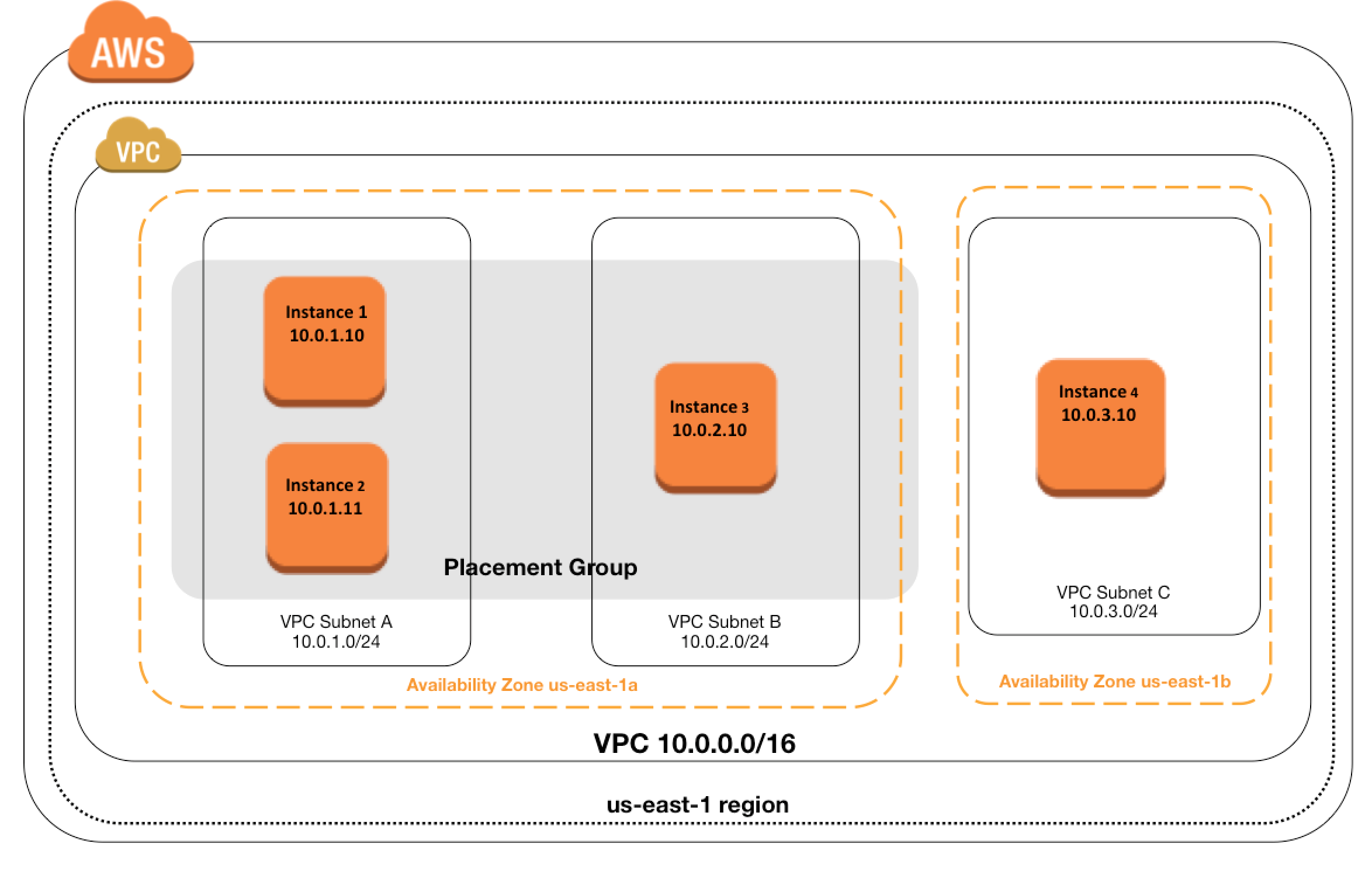
- Cluster – clusters instances into a low-latency group in a single AZ
- Partition – spreads instances across logical partitions, ensuring that instances in one partition do not share underlying hardware with instances in other partitions
- Spread – strictly places a small group of instances across distinct underlying hardware to reduce correlated failures
- There is no charge for creating a placement group.
- A maximum of 500 placement groups can be created per account in each Region.
- Placement groups support tagging at creation time.
- Placement groups can be shared across multiple AWS accounts using AWS Resource Access Manager (RAM).
Cluster Placement Groups
- is a logical grouping of instances within a single Availability Zone
- don’t span across Availability Zones
- can span peered VPCs in the same Region
- Instances are not isolated to a single rack.
- impacts High Availability as susceptible to hardware failures for the application
- recommended for
- applications that benefit from low network latency, high network throughput, or both.
- when the majority of the network traffic is between the instances in the group.
- To provide the lowest latency, and the highest packet-per-second network performance for the placement group, choose an instance type that supports enhanced networking
- recommended to launch all group instances with the same instance type at the same time to ensure enough capacity
- instances can be added later, but there are chances of encountering an insufficient capacity error
- for moving an instance into or between placement groups,
- the instance must be in the stopped state
- use the Modify Instance Placement option (Console) or
modify-instance-placementCLI command - can also remove an instance from a placement group by specifying an empty string for the group name
- an instance still runs in the same placement group if stopped and started within the placement group.
- in case of a capacity error, stop and start all of the instances in the placement group, and try the launch again. Starting the instances may migrate them to hardware that has capacity for all requested instances
- is only available within a single AZ either in the same VPC or peered VPCs
- Instances in the same cluster placement group enjoy a higher per-flow throughput limit for TCP/IP traffic and are placed in the same high-bisection bandwidth segment of the network.
- Supports On-Demand Capacity Reservations (ODCRs) to reserve capacity explicitly within the cluster placement group.
Capacity Reservations in Cluster Placement Groups (CPG-ODCRs)
- On-Demand Capacity Reservations can be created within Cluster Placement Groups for assured capacity with low latency and high throughput.
- CPG-ODCRs can be added to Resource Groups for managing reservations across multiple placement groups.
- CPG-ODCRs can be shared across multiple AWS accounts through AWS Resource Access Manager (RAM) to create central pools of capacity. (August 2025)
- Zonal Reserved Instances cannot reserve capacity explicitly in a placement group; use On-Demand Capacity Reservations instead.
- Capacity Reservations do not reserve capacity in partition or spread placement groups.
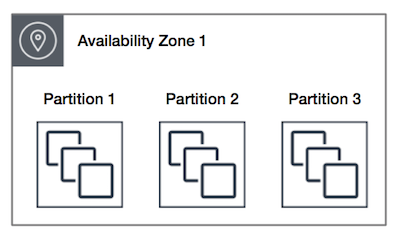
Partition Placement Groups
- is a group of instances spread across partitions i.e. group of instances spread across racks.
- Partitions are logical groupings of instances, where contained instances do not share the same underlying hardware across different partitions.
- EC2 divides each group into logical segments called partitions.
- EC2 ensures that each partition within a placement group has its own set of racks. Each rack has its own network and power source.
- No two partitions within a placement group share the same racks, allowing isolating the impact of a hardware failure within the application.
- reduces the likelihood of correlated hardware failures for the application.
- can have partitions in multiple Availability Zones in the same region
- can have a maximum of seven partitions per Availability Zone
- number of instances that can be launched into a partition placement group is limited only by the limits of the account.
- When instances are launched into a partition placement group, EC2 tries to evenly distribute the instances across all partitions. EC2 does not guarantee an even distribution.
- can be used to spread deployment of large distributed and replicated workloads, such as HDFS, HBase, and Cassandra, across distinct hardware.
- offer visibility into the partitions and the instances to partitions mapping can be seen. This information can be shared with topology-aware applications, such as HDFS, HBase, and Cassandra. These applications use this information to make intelligent data replication decisions for increasing data availability and durability.
- Capacity Reservations do not reserve capacity in a partition placement group.
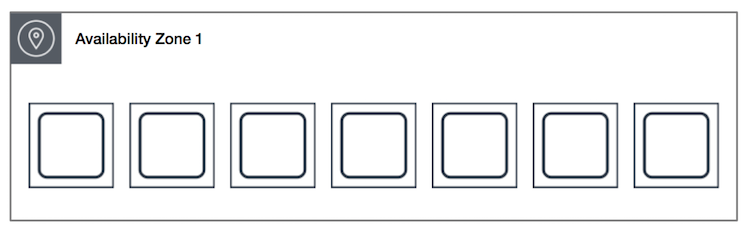
Spread Placement Groups
- is a group of instances that are each placed on distinct underlying hardware i.e. each instance on a distinct rack with each rack having its own network and power source.
- recommended for applications that have a small number of critical instances that should be kept separate from each other.
- reduces the risk of simultaneous failures that might occur when instances share the same underlying hardware.
- provide access to distinct hardware, and are therefore suitable for mixing instance types or launching instances over time.
- can span multiple Availability Zones in the same region.
- can have a maximum of seven running instances per AZ per group
- maximum number of instances = 1 instance per rack * 7 racks * No. of AZs for e.g. in a Region with three AZs, a total of 21 instances in the group (seven per zone) can be launched
- If the start or launch of an instance in a spread placement group fails cause of insufficient unique hardware to fulfil the request, the request can be tried later as EC2 makes more distinct hardware available over time
- Capacity Reservations do not reserve capacity in a spread placement group.
Spread Placement Group Levels
- Placement groups can spread instances across racks or hosts.
- Rack level spread (default) – each instance is placed on a distinct rack. Available in AWS Regions and on AWS Outposts.
- Host level spread – each instance is placed on a distinct host. Available only with AWS Outposts.
- On Outposts, a rack level spread placement group can hold as many instances as you have racks in your Outpost deployment.
- On Outposts, a host level spread placement group can hold as many instances as you have hosts in your Outpost deployment.
Placement Group Sharing (Cross-Account)
- Placement groups can be shared across multiple AWS accounts using AWS Resource Access Manager (RAM).
- To share a placement group, create a resource share through AWS RAM, add the placement group as a resource, and specify the target accounts.
- Instances from different AWS accounts can be launched into the same shared placement group for low-latency communication.
- A shared partition placement group supports a maximum of seven partitions per Availability Zone.
- A shared spread placement group supports a maximum of seven running instances per Availability Zone.
- You can’t view or modify instances and capacity reservations associated with a shared placement group but not owned by you.
- Use case: Enables scenarios like HFT (High-Frequency Trading) where multiple accounts need low-latency communication within the same placement group.
Placement Group Rules and Limitations
- Ensure unique Placement group name within AWS account for the region.
- A maximum of 500 placement groups can be created per account in each Region.
- Placement groups cannot be merged.
- An instance can be placed in one placement group at a time; you can’t place an instance in multiple placement groups.
- You can’t launch Dedicated Hosts in placement groups.
- Instances can be moved to or removed from placement groups using the Modify Instance Placement action (instance must be in stopped state).
- Cluster Placement groups
- can’t span multiple Availability Zones.
- supported by current generation instance types, except for burstable performance instances (e.g., T2, T3), Mac1 instances, and M7i-flex instances.
- also supports previous generation instances: A1, C3, C4, I2, M4, R3, and R4.
- maximum network throughput speed of traffic between two instances in a cluster placement group is limited by the slower of the two instances, so choose the instance type properly.
- can use up to 10 Gbps for single-flow traffic. Instances not within a cluster placement group can use up to 5 Gbps for single-flow traffic.
- Traffic to and from S3 buckets within the same region over the public IP address space or through a VPC endpoint can use all available instance aggregate bandwidth.
- recommended using the same instance type i.e. homogenous instance types. Although multiple instance types can be launched into a cluster placement group. However, this reduces the likelihood that the required capacity will be available for your launch to succeed.
- Network traffic to the internet and over an AWS Direct Connect connection to on-premises resources is limited to 5 Gbps.
- Supports On-Demand Capacity Reservations to explicitly reserve capacity. Zonal Reserved Instances cannot reserve capacity in a placement group.
- Partition placement groups
- supports a maximum of seven partitions per Availability Zone
- Dedicated Instances can have a maximum of two partitions
- are not supported for Dedicated Hosts
- Capacity Reservations do not reserve capacity in a partition placement group
- Spread placement groups
- supports a maximum of seven running instances per Availability Zone for e.g., in a region that has three AZs, then a total of 21 running instances in the group (seven per zone).
- are not supported for Dedicated Instances.
- Host level spread placement groups are only supported on AWS Outposts.
- Capacity Reservations do not reserve capacity in a spread placement group.
ENA Express and Placement Groups
- ENA Express uses the Scalable Reliable Datagram (SRD) protocol to increase the maximum single-flow bandwidth up to 25 Gbps between EC2 instances without requiring a cluster placement group.
- ENA Express also provides up to 85% improvement in P99.9 latency for high throughput workloads.
- Works transparently with TCP and UDP protocols.
- For the absolute highest performance (lowest latency + highest PPS), a cluster placement group combined with enhanced networking and Jumbo Frames (9001 MTU) remains the best option.
AWS Certification Exam Practice Questions
- Questions are collected from Internet and the answers are marked as per my knowledge and understanding (which might differ with yours).
- AWS services are updated everyday and both the answers and questions might be outdated soon, so research accordingly.
- AWS exam questions are not updated to keep up the pace with AWS updates, so even if the underlying feature has changed the question might not be updated
- Open to further feedback, discussion and correction.
- What is a cluster placement group?
- A collection of Auto Scaling groups in the same Region
- Feature that enables EC2 instances to interact with each other via high bandwidth, low latency connections
- A collection of Elastic Load Balancers in the same Region or Availability Zone
- A collection of authorized Cloud Front edge locations for a distribution
- In order to optimize performance for a compute cluster that requires low inter-node latency, which feature in the following list should you use?
- AWS Direct Connect
- Cluster Placement Groups
- VPC private subnets
- EC2 Dedicated Instances
- Multiple Availability Zones
- What is required to achieve gigabit network throughput on EC2? You already selected cluster-compute, 10GB instances with enhanced networking, and your workload is already network-bound, but you are not seeing 10 gigabit speeds.
- Enable biplex networking on your servers, so packets are non-blocking in both directions and there’s no switching overhead.
- Ensure the instances are in different VPCs so you don’t saturate the Internet Gateway on any one VPC.
- Select PIOPS for your drives and mount several, so you can provision sufficient disk throughput
- Use a Cluster placement group for your instances so the instances are physically near each other in the same Availability Zone. (You are not guaranteed 10 gigabit performance, except within a placement group. Using placement groups enables applications to participate in a low-latency, 10 Gbps network)
- You need the absolute highest possible network performance for a cluster computing application. You already selected homogeneous instance types supporting 10 gigabit enhanced networking, made sure that your workload was network bound, and put the instances in a placement group. What is the last optimization you can make?
- Use 9001 MTU instead of 1500 for Jumbo Frames, to raise packet body to packet overhead ratios. (For instances that are collocated inside a placement group, jumbo frames help to achieve the maximum network throughput possible, and they are recommended in this case)
- Segregate the instances into different peered VPCs while keeping them all in a placement group, so each one has its own Internet Gateway.
- Bake an AMI for the instances and relaunch, so the instances are fresh in the placement group and do not have noisy neighbors
- Turn off SYN/ACK on your TCP stack or begin using UDP for higher throughput.
- A company needs to deploy a distributed database across multiple racks for fault isolation while maintaining rack-level visibility for data replication decisions. Which placement group strategy should they use?
- Cluster placement group
- Partition placement group
- Spread placement group
- Default placement (no placement group)
- An organization has multiple AWS accounts that need instances in the same placement group for low-latency communication. How can they achieve this?
- Create identical placement groups with the same name in each account
- Use VPC peering between the accounts
- Share the placement group across accounts using AWS Resource Access Manager (RAM)
- Launch all instances from a single account and use IAM cross-account roles
- Which of the following statements about spread placement groups are correct? (Choose 2)
- A rack level spread placement group supports a maximum of seven running instances per Availability Zone
- Host level spread placement groups are available in all AWS Regions
- Spread placement groups support Dedicated Instances
- Spread placement groups can span multiple Availability Zones in the same Region
- A team wants to move an existing running instance into a cluster placement group. What is the correct procedure?
- Use the modify-instance-placement command while the instance is running
- Create an AMI and launch a new instance into the placement group
- Stop the instance, use modify-instance-placement to assign it to the placement group, then start it
- Terminate the instance and launch a new one in the placement group
References
- EC2 User Guide – Placement Groups
- EC2 User Guide – Placement Strategies
- EC2 User Guide – Capacity Reservations with Cluster Placement Groups
- EC2 User Guide – Share a Placement Group
- EC2 User Guide – Change Instance Placement