Google Cloud Billing
- Google Cloud Billing defines billing accounts linked to Google Cloud Projects to determine who pays for a given set of Google Cloud resources.
Cloud Billing Concepts
Resource Hierarchy
- Google Cloud resources are organized hierarchically i.e. Organization -> Folder -> Project -> Resources
- Resource hierarchy allows mapping of organization’s operational structure to Google Cloud, and to manage access control and permissions for groups of related resources.
- Both IAM & Organization policies are inherited through the hierarchy, and the effective policy at each node of the hierarchy is the result of policies directly applied at the node and policies inherited from its ancestors
Cloud Billing Account
- is a cloud-level resource managed in the Cloud Console.
- tracks all of the costs (charges and usage credits) incurred by the Google Cloud usage
- A Cloud Billing account can be linked to one or more projects.
- Project usage is charged to the linked Cloud Billing account.
- results in a single invoice per Cloud Billing account
- operates in a single currency
- defines who pays for a given set of resources
- has billing-specific roles and permissions to control accessing and modifying billing-related functions (established by IAM roles)

Cloud Billing IAM Roles
- To move the project to a different billing account, you must be a billing administrator and the project owner.
| Role | Purpose | Level | Use Case |
|---|---|---|---|
| Billing Account Creator ( roles/) |
Create new self-serve (online) billing accounts. | Organization | Use this role for initial billing setup or to allow creation of additional billing accounts. Users must have this role to sign up for Google Cloud with a credit card using their corporate identity. Tip: Minimize the number of users who have this role to help prevent proliferation of untracked cloud spend in your organization. |
| Billing Account Administrator ( roles/) |
Manage billing accounts (but not create them). | Organization or billing account. | This role is an owner role for a billing account. Use it to manage payment instruments, configure billing exports, view cost information, link and unlink projects and manage other user roles on the billing account. |
| Billing Account Costs Manager ( roles/) |
Manage budgets and view/export cost information of billing accounts (but not pricing information). | Organization or billing account. | Create, edit, and delete budgets, view billing account cost information and transactions, and manage the export of billing cost data to BigQuery. Doesn’t confer the right to export pricing data or view custom pricing. Doesn’t allow linking or unlinking projects. |
| Project Billing Costs Manager ( roles/) |
View billing account cost information scoped to projects. | Organization or billing account. | When granted in conjunction with cost view permissions on projects, provides access to billing information scoped to the projects to which the user has cost access. Includes access to Reports, FinOps hub, Budgets and alerts, and Anomalies. |
| Billing Account User ( roles/) |
Link projects to billing accounts. | Organization or billing account. | This role has very restricted permissions, so you can grant it broadly, typically in combination with Project Creator. These two roles allow a user to create new projects linked to the billing account on which the role is granted. |
| Billing Account Viewer ( roles/) |
View billing account cost information and transactions. | Organization or billing account. | Billing Account Viewer access would usually be granted to finance teams, it provides access to spend information, but does not confer the right to link or unlink projects or otherwise manage the properties of the billing account. |
| Project Billing Manager ( roles/) |
Link/unlink the project to/from a billing account. | Organization, folder, or project. | This role allows a user to attach the project to the billing account, but does not grant any rights over resources. Project Owners can use this role to allow someone else to manage the billing for the project without granting them resource access. |
Budgets and Budgets Alerts
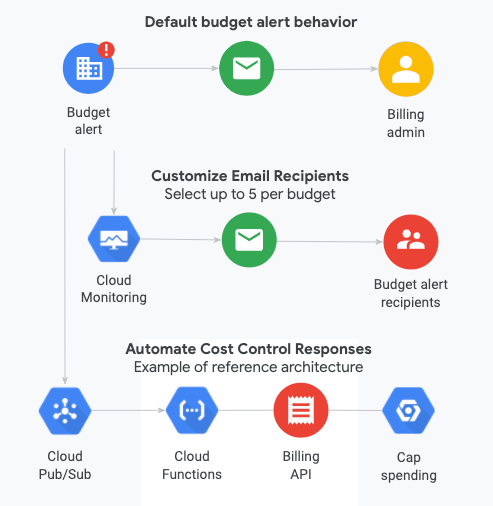
- Cloud Billing budgets can be created to monitor all of the Google Cloud charges in one place.
- Budget enables tracking of actual Google Cloud spend against the planned spend.
- Budget alert threshold rules can be set that are used to trigger email notifications based on the set budget amount.
- Budget alert emails help track the spend against the set budget.
- Budgets can also be used to automate cost control responses.
- Pub/Sub can be used for programmatic notifications for e.g. to forward budget messages to other mediums or to automate cost management tasks
- Cloud Run functions (formerly Cloud Functions) can be used to listen to Pub/Sub notifications and automate responses such as disabling billing, sending Slack notifications, or controlling resource usage.
- Each Cloud Billing account can have up to 50,000 budgets associated with it.
- To create or modify a budget, you need the Billing Account Costs Manager role or the Billing Account Administrator role.
Cost Anomaly Detection
- Cost Anomaly Detection is now Generally Available (GA) as of 2025 and is enabled by default for all customers across all projects.
- Uses AI to identify spending patterns based on historical and seasonal trends and forecasts expected daily spend specific to each project.
- Continuously monitors actual spend every hour and detects deviations from the expected rate.
- Anomaly alerts are on by default for every customer, including new ones, offering complete protection from day one.
- Provides an Anomaly dashboard in the billing console with root cause details for cost spikes.
- Supports customizable thresholds for cost impact amount and percent of deviation.
- Anomaly notifications can be sent via Pub/Sub for programmatic responses (Preview).
- Users can provide feedback on detected anomalies to improve accuracy.
Cloud Billing Export
- Cloud Billing export to BigQuery enables exporting detailed Google Cloud billing data (such as usage, cost estimates, and pricing data) automatically throughout the day to a specified BigQuery dataset
- Cloud Billing data from BigQuery can be accessed for detailed analysis, or visualized using a tool like Data Studio (previously known as Looker Studio, and originally Google Data Studio).
- Google Cloud billing data is not added retroactively, so you won’t see Cloud Billing data from before you enable export.
- Google Cloud recommends enabling Cloud Billing data export to BigQuery at the same time that you create a Cloud Billing account.
- Cloud Billing file export to CSV/JSON (Cloud Storage) was deprecated and discontinued in May 2023. BigQuery is now the only supported export method.
- BigQuery export includes multiple table types:
- Standard usage cost table – basic cost and usage data
- Detailed usage cost table – includes resource-level cost data
- Pricing data table – SKU pricing information
- CUD metadata export (Preview) – committed use discount metadata
- FOCUS billing data export (Preview, June 2026) – exports billing data using the FinOps Open Cost and Usage Specification (FOCUS) format up to version 1.2, enabling standardized cross-cloud cost analysis.
FinOps Hub
- FinOps Hub (introduced May 2024, upgraded to FinOps Hub 2.0 at Cloud Next 2025) is a Cloud Billing experience that centralizes cost optimization activities.
- Helps teams find and prioritize cost optimization opportunities surfaced as recommendations and savings opportunities.
- Uses Cloud Billing to retrieve cost data and various Google Cloud cost recommenders for optimization and utilization metrics.
- FinOps Hub 2.0 focuses on bringing utilization insights to the forefront, showing potential waste and enabling immediate action.
- Key capabilities:
- View estimated costs of potentially wasted usage
- Rightsizing recommendations for compute resources
- Rate optimization with committed use discounts (CUDs)
- Actionable recommendations with estimated savings
Committed Use Discounts (CUDs)
- Committed Use Discounts (CUDs) provide a discount in exchange for committing to spend a minimum amount or use a minimum level of resources for a specified term (1 or 3 years).
- Two types:
- Resource-based CUDs – commit to using a specific amount of vCPU, memory, GPU, or local SSD
- Spend-based CUDs – commit to spending a minimum amount on eligible services
- Updated Spend-based CUD Model (2025-2026): Google Cloud redesigned spend-based CUDs from a credit-based model to direct discounted pricing, expanded coverage to include memory-optimized VMs, HPC, and Cloud Run, and fully migrated all customers by February 2026.
- CUD Analysis (GA, June 2026) provides a unified interface to examine both spend-based and resource-based CUDs.
- CUD Recommendations are now available for GPUs, Local SSD disks, and OS licenses (GA, June 2026).
Cost Attribution and Labels
- Labels are key-value pairs that can be attached to Google Cloud resources to organize and manage costs at scale.
- Label information is forwarded to Cloud Billing cost management tools, including cost reports and billing exports.
- Google Cloud introduced the Cost Attribution Solution (October 2024) that leverages labels to attribute costs back to departments, teams, or applications.
- GKE cost allocation provides granular cost breakdowns by namespace or label on Kubernetes resources.
GCP Certification Exam Practice Questions
- Questions are collected from Internet and the answers are marked as per my knowledge and understanding (which might differ with yours).
- GCP services are updated everyday and both the answers and questions might be outdated soon, so research accordingly.
- GCP exam questions are not updated to keep up the pace with GCP updates, so even if the underlying feature has changed the question might not be updated
- Open to further feedback, discussion and correction.
- Your company has created a new billing account and needs to move the projects to the billing account. What roles are needed to change the billing account? (Select two)
- Project Billing manager
- Project Owner
- Billing Account Administrator
- Billing Account Manager
- Project Editor
- You are the team lead of a group of 10 developers. You provided each developer with an individual Google Cloud Project that they can use as their personal sandbox to experiment with different Google Cloud solutions. You want to be notified if any of the developers are spending above $500 per month on their sandbox environment. What should you do?
- Create a single budget for all projects and configure budget alerts on this budget.
- Create a separate billing account per sandbox project and enable BigQuery billing exports. Create a Data Studio dashboard to plot the spending per billing account.
- Create a budget per project and configure budget alerts on all of these budgets.
- Create a single billing account for all sandbox projects and enable BigQuery billing exports. Create a Data Studio dashboard to plot the spending per project.
- Your finance team wants to view the billing report for your projects. You want to make sure that the finance team does not get additional permissions to the project. What should you do?
- Add the group for the finance team to roles/billing.user role.
- Add the group for the finance team to roles/billing.admin role.
- Add the group for the finance team to roles/billing.viewer role.
- Add the group for the finance team to roles/billing.projectManager role.
- Your organization wants to allow developers to view costs for their own projects without giving them access to the full billing account. Which role should you grant them on the billing account?
- Billing Account Viewer
- Billing Account Costs Manager
- Project Billing Costs Manager
- Project Billing Manager
- You notice an unexpected cost spike on one of your projects. Which Cloud Billing feature uses AI to automatically detect and alert you about such anomalies?
- Budget Alerts
- FinOps Hub
- Cost Anomaly Detection
- Billing Export to BigQuery